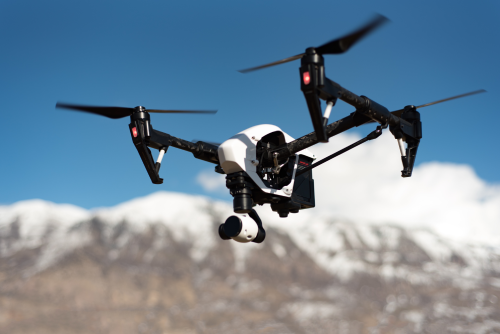
Learning how to shoot aerial panoramas with a drone is one of the fastest ways to make your images look more cinematic and more useful. A good panorama can show the full shape of a coastline, fort, valley, farm, township, or construction site in a way a single frame often cannot. If you get the capture right, you also gain more resolution for prints, crops, and commercial use.
Quick Take
- Aerial panoramas work best when the drone stays in one position and only rotates smoothly.
- For beginners, start with a single-row horizontal panorama before trying 180-degree, 360-degree, or multi-row panos.
- Use locked exposure, fixed white balance, and fixed focus so every frame matches.
- Aim for roughly 25 to 35 percent overlap between frames.
- Shoot in calm conditions, ideally early morning or late afternoon, when haze and wind are lower.
- Auto panorama modes are convenient, but manual shooting often gives more control and better results.
- In India, always verify the latest DGCA, Digital Sky, local airspace, and site-specific restrictions before flying.
- Stitch carefully in editing, and check for ghosting, bent horizons, and broken buildings.
Why aerial panoramas are worth learning
A panorama is simply several overlapping photos stitched into one wider image.
With drones, panoramas are especially useful because the camera is usually quite wide already, but the scene is often much wider still. Think of:
- a beach curving along the coast
- a hill fort with the surrounding valley
- a tea estate or terraced fields
- a real estate project and its approach roads
- a city skyline where a single frame feels cramped
- a river bend, ghat, or reservoir seen from above
Compared with a single ultra-wide frame, a stitched panorama can give you:
- more detail
- a more natural sense of scale
- better cropping flexibility
- less “everything looks tiny” distortion
- stronger storytelling
Choose the right type of panorama
Not every scene needs a 360. Picking the right panorama style keeps your shoot simpler and your final image cleaner.
| Panorama type | Best for | Typical capture style | Difficulty |
|---|---|---|---|
| Single-row horizontal | Skylines, coastlines, open landscapes | Rotate left to right in one line | Easy |
| Vertical panorama | Tall subjects like waterfalls, cliffs, towers | Tilt camera up/down across multiple frames | Easy to medium |
| Multi-row wide panorama | Forts, townships, large properties, mountain scenes | Shoot multiple rows with overlap | Medium |
| 180-degree panorama | Very wide landscapes and dramatic viewpoints | Wider horizontal sweep, sometimes 2 rows | Medium |
| 360-degree sphere | Virtual tours, immersive viewing, tourism content | Full circle plus top/bottom coverage | Harder |
Best starting point for beginners
Start with a single-row horizontal panorama of 5 to 9 frames.
It is the easiest to stitch, the easiest to frame, and the quickest to repeat if something goes wrong.
When to use a multi-row panorama
Use a multi-row pano when:
- the scene is wide and tall
- you want more resolution
- you want to include foreground patterns plus distant background
- you are shooting a property, campus, resort, factory, or large landscape
What you need before takeoff
You do not need a top-end drone to shoot a good panorama, but you do need consistency.
Minimum practical requirements
- a stable drone with a working gimbal, which is the stabilised camera mount
- enough battery to hover, compose, and reshoot if needed
- a clean lens
- a fast, reliable memory card
- a drone app that lets you lock or control exposure
Helpful extras
- RAW photo support
- automatic panorama mode
- histogram display for exposure checking
- manual white balance
- a controller with a bright screen
- extra batteries
Before you leave home
Check these basics:
- batteries charged
- SD card formatted
- lens cleaned
- return-to-home height reviewed
- compass and IMU status normal if your drone/app requires it
- weather checked, especially wind speed and gusts
- the location legally flyable and practically safe
Safety, legal, and privacy checks in India
This matters more than the photo.
Before flying in India, verify the latest official guidance on:
- DGCA rules
- Digital Sky airspace status
- your drone’s category and compliance requirements
- local police, municipal, site, or property permissions where applicable
- any temporary restrictions in the area
Do not assume a place is allowed just because other creators posted from there.
Be extra careful around:
- airports and flight paths
- military or sensitive government areas
- border regions
- wildlife areas
- crowded public events
- religious sites and heritage zones
- private homes and residential societies
- industrial facilities
Also think about privacy. A panorama can capture a lot more than you intend. Avoid hovering close to homes, terraces, school grounds, or crowds. For client work, get permission from the property owner or site manager when relevant.
If there is any doubt about legality or safety, skip the flight.
Best conditions for aerial panoramas in India
Panoramas punish bad conditions more than normal drone photos do. If wind, haze, or changing light is strong, the frames will not match.
Best time of day
For most scenes, your best windows are:
- early morning
- late afternoon
- golden hour
These times usually give:
- softer shadows
- lower contrast
- less heat shimmer
- cleaner colour
- calmer wind than midday
Conditions to avoid
- harsh noon haze
- gusty wind
- fast-moving storm clouds
- monsoon squalls
- very low light that forces slow shutter speeds
- dusty afternoons in dry regions
- hill conditions where clouds move quickly through the frame
India-specific reality
In many parts of India, atmosphere matters as much as light.
A panorama over a city or plains location at 1 pm in summer may look flat and washed out because of haze and heat shimmer. The same scene after light rain, or early in the morning, can look dramatically clearer.
On the coast, wind can increase quickly.
In the hills, weather can shift within minutes.
Plan around the conditions, not just the location.
Camera settings that make stitching easy
The biggest beginner mistake is letting the camera change settings between frames.
If frame one is bright and frame six is darker, stitching becomes messy.
Use manual exposure or exposure lock
Your goal is consistency.
Use either:
- full manual exposure, or
- auto exposure once, then lock it before you start shooting
If your drone supports a histogram, use it to avoid clipped highlights, especially in clouds, water reflections, light-coloured buildings, or concrete roofs.
A safe beginner approach:
- keep ISO as low as possible
- use a shutter speed fast enough to avoid blur
- expose slightly carefully for highlights if the scene has bright sky
Fix white balance
White balance controls colour temperature.
If it changes from one frame to the next, some shots will look cooler and others warmer. The stitch will show strange colour shifts.
Set white balance manually if possible, or lock it. Do not leave it on automatic for panoramas.
Lock focus if your drone allows it
Focus should stay the same across the sequence.
On many drone scenes, focusing once and leaving it there is enough because much of the scene is far away. Re-focusing between frames can create subtle differences in sharpness.
Shoot RAW when possible
RAW files preserve more detail and give more editing flexibility.
They are especially useful when:
- the sky is bright and the ground is darker
- you need to recover highlights
- you want cleaner colour grading
- you plan to print or deliver to clients
JPEG is fine for quick social content, but RAW is better if quality matters.
Keep overlap consistent
Overlap means each frame shares part of the previous frame.
A practical target is around 25 to 35 percent overlap.
Too little overlap makes stitching fail.
Too much overlap creates extra files without much benefit.
Watch your shutter speed
Even though the drone is stabilised, it is still flying.
If the shutter is too slow, fine details like rooftops, trees, and road markings may soften. Wind makes this worse.
As a rule, use the fastest shutter you reasonably can while keeping ISO low.
Should you use an ND filter?
An ND filter is like sunglasses for the camera.
For still panoramas, it is usually not essential unless the light is extremely bright and you need exposure control. Unlike video, you are not trying to maintain a cinematic shutter rule. For stills, sharpness matters more.
Step-by-step: how to shoot aerial panoramas with a drone
Here is a practical workflow that works for most beginners.
1. Choose the scene and your hover point
Do not take off and immediately start shooting.
First, ask:
- What is the main subject?
- Do I want width, height, or both?
- Where should the horizon sit?
- What should anchor the composition?
A good panorama still needs a subject. It could be:
- a fort on a ridge
- a winding road
- a lake edge
- a campus in the foreground with hills behind it
- a line of ghats or shoreline
2. Get to a safe height and settle the drone
Climb to your chosen altitude, then let the drone settle.
Wait a few seconds so the gimbal stabilises and the aircraft stops drifting.
A lower altitude gives more depth, but it can also create parallax problems. Parallax is when near and far objects shift against each other because the camera position changes. That makes stitching harder.
A slightly higher altitude often produces cleaner stitches because the scene is more uniform.
3. Frame the outer edges first
Before taking any photo, check the left and right ends of your planned panorama.
Make sure you are not about to cut off something important like:
- the edge of a building
- the tip of a hill
- the full curve of the shoreline
- a road entering the frame
Shoot a little wider than you think you need. Cropping later is easy. Missing content is not.
4. Lock exposure, white balance, and focus
Do this before the first frame.
This is the most important technical step.
5. Decide whether to use auto pano or manual capture
If your drone has an automatic panorama mode, it can be very useful.
Use it when:
- you are learning
- the light is stable
- the wind is mild
- the scene is not too complex
Shoot manually when:
- you want RAW files with more control
- you need a custom crop
- you want extra overlap
- the auto mode gives poor edge coverage
- you are shooting for a client
6. Capture the sequence carefully
If you are using auto mode, monitor the drone and make sure it stays stable.
If you are shooting manually:
- Start at one end of the panorama.
- Take the first shot.
- Rotate the drone slightly using yaw, which means turning left or right around its own axis.
- Keep the same height and roughly the same camera angle.
- Take the next shot with about 25 to 35 percent overlap.
- Repeat across the full scene.
- Take one extra frame at each end if possible.
For many wide-angle drone cameras, small and even rotation steps work best. Do not jerk the drone or drift sideways between shots.
7. For multi-row panoramas, shoot row by row
A reliable method is:
- Shoot the top row from left to right.
- Tilt the gimbal slightly downward.
- Shoot the middle row from right to left.
- Tilt down again if needed.
- Shoot the bottom row from left to right.
This “snake pattern” helps you stay organised and reduces missed gaps.
Keep the overlap both horizontally and vertically.
8. Review before you leave
Zoom in on a few frames and check for:
- blur
- exposure mismatch
- clipped highlights
- missing overlap
- a tilted horizon
- propellers sneaking into the top of the frame on certain wide shots
If there is a problem, reshoot immediately.
Manual panorama tips that improve results fast
Rotate the drone, do not fly sideways
For most panoramas, it is cleaner to keep the drone in one place and rotate it.
If you slide sideways while shooting, parallax increases and nearby objects can stitch badly.
Avoid subjects too close to the drone
Trees, poles, terraces, and building corners very close to the drone often create stitching issues.
If such objects must be in the frame, back off or climb a little higher.
Keep the horizon level
A crooked horizon becomes more obvious in wide panoramas than in single images.
Use the app grid if available.
Leave room for crop
Stitched panoramas often need some cropping around the edges.
Do not frame too tightly.
Composition tips for stronger aerial panoramas
A technically correct panorama can still look boring if composition is weak.
Give the viewer a clear subject
Ask yourself what the image is really about.
Examples:
- not “a random town,” but “the town wrapped around a lake”
- not “a hill,” but “the fort dominating the ridge”
- not “a coastline,” but “the coastline curving toward the lighthouse”
Use layers
The best aerial panoramas often have:
- foreground pattern
- mid-ground subject
- distant background
For example:
- foreground fields
- mid-ground village
- background hills
Layers create depth.
Watch the sky-to-land ratio
Too much empty sky weakens many panoramas.
Unless the clouds are dramatic, keep the sky controlled and give more space to the land or subject.
Shoot slightly off-centre when needed
A centred subject is not always best.
A coastline, road, or river bend can look more dynamic when it leads diagonally across the frame.
Use natural lines
Look for:
- roads
- walls
- ridgelines
- bridges
- shorelines
- rows of trees
- canal edges
These lines help the eye travel through a wide image.
Editing and stitching workflow
The shoot is only half the job. The final look depends on a clean stitch.
1. Import and sort the sequence
Keep each panorama sequence in its own folder or stack.
Delete obvious mistakes only after confirming you still have full coverage.
2. Apply consistent basic adjustments
Before stitching, sync basic settings across all frames, such as:
- white balance
- exposure
- contrast
- highlights and shadows
- lens corrections if your software handles them well
The key is consistency. Do not edit each frame differently.
3. Stitch in panorama software
Common options include:
- your drone manufacturer’s app or software
- Lightroom
- Photoshop
- Affinity Photo
- PTGui
- Hugin
If the first stitch fails, do not assume the photos are bad. Try:
- a different projection
- slightly different source selection
- removing one problematic frame
- stitching JPEG previews first to test alignment
4. Fix seams and ghosting
Ghosting happens when moving objects appear doubled or broken.
Typical culprits:
- cars
- boats
- waves
- people
- birds
- swaying trees
- fast clouds
If the software gives a seam or merge option, use the cleanest source area. Some manual retouching may be needed.
5. Level, crop, and refine
After the stitch:
- straighten the horizon
- crop away uneven edges
- reduce distortion if buildings bend unnaturally
- add local contrast carefully
- sharpen only after final sizing
6. Export for the right use
For social media, keep the crop strong and simple.
For clients, retain a high-resolution master file.
For printing, review sharpness at 100 percent before export.
Common mistakes when shooting aerial panoramas
Letting exposure change between frames
This creates visible bands and uneven skies.
Shooting in strong wind
The drone may drift or tilt between shots, which breaks the stitch.
Using too little overlap
The software may fail to align the images.
Flying too close to foreground objects
This increases parallax and causes broken joins.
Shooting at midday in haze
The final panorama looks flat, low-contrast, and disappointing.
Trusting auto mode without checking the result
Auto panos are convenient, not magical.
Starting with low battery
Panoramas take longer than a single shot, especially if you need a reshoot.
Ignoring moving elements
Traffic, waves, and crowds often create messy seams.
Over-editing the final image
Too much clarity, saturation, or sharpening can make a wide panorama look artificial very quickly.
A practical beginner workflow that works
If you want the simplest repeatable method, do this on your next flight:
- Pick an open landscape or waterfront on a calm morning.
- Hover at a moderate height, not too low.
- Compose a 5 to 7 frame single-row panorama.
- Lock exposure and white balance.
- Shoot in RAW if available.
- Rotate smoothly with even overlap.
- Take one extra frame on each side.
- Stitch at home and check what went wrong.
Repeat the same exercise a few times before trying 360-degree or multi-row work.
FAQ
Is automatic panorama mode good enough for beginners?
Yes, often. It is a good way to understand framing and overlap. But manual capture gives you more control and is usually better for important work.
Should I shoot RAW or JPEG for drone panoramas?
RAW is better when image quality matters, especially for editing dynamic range and colour. JPEG is fine for quick, simple posts.
How many photos do I need for a panorama?
It depends on the width of the scene and your drone’s field of view. Many beginner panos use 5 to 9 frames in one row. Multi-row panos can use far more.
What is the best overlap for aerial panoramas?
About 25 to 35 percent is a solid practical range. If conditions are difficult, slightly more overlap can help.
Why do buildings or trees look broken in my panorama?
Usually because of parallax, wind drift, low overlap, or moving subjects. Being too close to foreground objects also makes this worse.
What altitude is best for a drone panorama?
There is no single best altitude. Higher altitudes usually stitch more easily. Lower altitudes can look more dramatic but create more parallax and complexity.
Can I shoot panoramas in windy conditions?
You can, but results often suffer. Mild, steady wind may be manageable. Gusty conditions are a bad idea for clean stitching and safe flying.
Do I need ND filters for panorama photos?
Not usually. For still images, keeping sharpness and exposure consistency matters more. ND filters are more important in video workflows.
How do I avoid a curved or tilted horizon?
Use the app’s grid, make sure the gimbal is level, and leave enough room to straighten and crop during editing.
Are 360-degree drone panoramas worth it?
Yes, if you need immersive content, tourism views, or virtual tours. For general photography, a well-composed wide or multi-row pano is often more useful and easier to perfect.
Final takeaway
If you want better aerial panoramas, do not start with complicated 360 shots. Start with a calm-morning, 5 to 7 frame horizontal pano, lock exposure and white balance, keep the drone still, and shoot with clean overlap. Once that becomes consistent, move to multi-row work and more advanced scenes. The real skill is not flying farther or higher. It is making every frame match.
