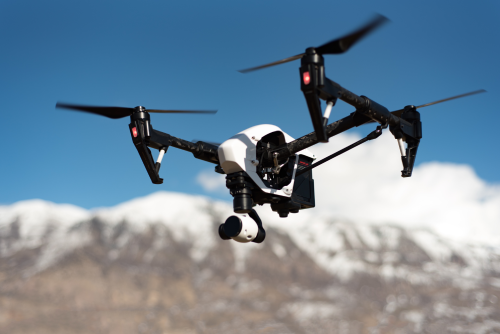
A drone hyperlapse can turn an ordinary scene into a cinematic sequence by combining time and movement in the same shot. If you want to learn how to capture hyperlapse with a drone step by step, the key is not just flying smoothly, but planning your path, locking your camera settings, and giving yourself enough frames to work with.
Quick Take
- A hyperlapse is a moving time-lapse. The camera changes position over time, instead of staying fixed.
- The easiest way to shoot one is with a drone that offers built-in hyperlapse or waypoint features.
- For clean results, lock exposure, white balance, and focus before you start.
- Calm weather matters more than expensive gear.
- For beginners, aim for a final clip of 6 to 10 seconds.
- In India, always verify the latest airspace and operating rules before flying. Do not assume a scenic location is legal or safe for drone use.
- Good editing is part of the process. A shaky or flickering hyperlapse is usually fixed in planning first, software second.
What a drone hyperlapse actually is
People often mix up three different things:
- Timelapse: camera stays in one place and captures frames over time.
- Hyperlapse: camera moves through space between frames.
- Sped-up video: you record normal video and increase playback speed later.
All three can look dramatic, but a true drone hyperlapse usually feels more immersive because the point of view travels through the scene.
For example:
- A timelapse of clouds above a fort shows time passing.
- A hyperlapse that slowly pushes toward the fort while clouds move adds depth and scale.
- A sped-up video can work too, but it often looks less polished unless the original flight was very smooth.
What you need before you start
You do not need a cinema drone. You do need a stable workflow.
Basic gear
- A GPS-stabilised camera drone
- Fully charged batteries
- Fast memory card with enough free space
- Spare propellers if possible
- Drone app that supports interval shooting, timelapse, or waypoint flight
- Editing software that can handle image sequences or speed-changed video
Helpful extras
- ND filters for bright daylight
- A landing pad if you are flying from dusty ground
- A power bank for your phone or controller
- A notebook or phone note to track interval, frame count, and shot idea
Best type of drone for beginners
A drone with built-in hyperlapse or waypoint support makes life much easier. The drone repeats the movement more consistently than manual stick control.
If your drone does not have those features, you can still create a good result by:
- flying very slowly and smoothly,
- taking photos at set intervals, or
- recording video and speeding it up in post.
Safety, privacy, and legal checks in India
Before any hyperlapse shoot, pause and do the boring part first. It saves much bigger problems later.
Verify the latest flying rules
Drone rules in India can change, and restrictions depend on:
- your drone category,
- your location,
- the purpose of your flight,
- and current airspace status.
Always verify the latest official guidance, airspace status, and any required permissions before flying. If your work is commercial, confirm what documentation or approvals apply to your operation.
Avoid risky and sensitive areas
Do not fly casually in or near:
- airports and flight paths,
- helipads,
- military or government-sensitive areas,
- crowded public events,
- religious gatherings,
- dense traffic corridors,
- schools, hospitals, or residential spaces where privacy is a concern.
Respect people on the ground
A hyperlapse often lasts several minutes in the air. That means more time for people to notice the drone, feel uncomfortable, or unknowingly walk under your flight path.
Avoid:
- hovering over people,
- filming into private homes,
- following individuals without consent,
- creating noise nuisance in quiet neighbourhoods.
Weather matters more than you think
For hyperlapse, even small wind shifts can ruin a sequence.
Do not shoot if:
- gusts are changing direction quickly,
- the drone struggles to hold position,
- visibility is poor,
- rain is possible,
- haze is so strong that the scene loses depth.
In many Indian cities, early morning often gives you cleaner air, softer light, and lower winds than late afternoon.
Step by step: how to capture hyperlapse with a drone
Step 1: Choose a subject that benefits from movement
The best hyperlapse shots have two layers:
- A moving camera
- Something in the scene that changes over time
Good subjects include:
- sunrise over a coastline
- clouds rolling past a hill
- a city skyline from a legal open area
- a river bend with changing light
- a long road from a safe, legal distance without overflying traffic
- a large building or landmark viewed from permitted airspace
A weak subject is just “an empty open field with no change.”
Ask yourself:
- What is moving here?
- What am I revealing?
- What should the viewer notice by the end of the shot?
If you cannot answer that, your hyperlapse may feel flat.
Step 2: Pick one simple movement pattern
Beginners often try complex camera moves too early. Start with one of these.
Push in
The drone slowly moves toward the subject.
Best for:
- monuments seen from a legal distance
- temples or forts only where drone use is clearly allowed
- buildings
- cliff edges
- isolated structures
Pull back
The drone moves away and reveals more of the environment.
Best for:
- beaches
- farmland
- lakes
- hill viewpoints
Side reveal
The drone moves sideways so a foreground object reveals the background.
Best for:
- trees opening onto a valley
- rock formations
- architecture with layered depth
Orbit
The drone circles around a subject while keeping it centred.
Best for:
- statues, towers, and isolated structures where flight is allowed
This looks impressive, but it is harder to do manually. Use built-in orbit or waypoint tools if available.
Rising crane move
The drone slowly ascends while holding the subject in frame.
Best for:
- riverfronts
- campuses
- resorts
- estates with permission
For your first few shoots, a slow push in or slow rise is the safest choice.
Step 3: Decide your final clip length before take-off
This is where many beginners go wrong. They fly first and do the maths later.
A hyperlapse needs enough frames to look smooth.
If you export at 25 fps, which is a simple choice for many creators in India:
- 6 seconds final video = 150 frames
- 8 seconds final video = 200 frames
- 10 seconds final video = 250 frames
Here is a simple planning table.
| Final clip length at 25 fps | Frames needed | Capture time at 3-second interval | Capture time at 5-second interval |
|---|---|---|---|
| 6 seconds | 150 | 7 min 30 sec | 12 min 30 sec |
| 8 seconds | 200 | 10 min | 16 min 40 sec |
| 10 seconds | 250 | 12 min 30 sec | 20 min 50 sec |
A practical beginner target
For your first drone hyperlapse:
- aim for 6 to 8 seconds final output
- use 2 to 4 second intervals if your drone supports it
- keep total capture time within a comfortable battery margin
If your battery is already down to a risky level by the time the sequence finishes, the shot was too ambitious.
Step 4: Choose the right time of day
Light consistency is critical.
Best times
- Early morning: cleaner air, softer shadows, less wind
- Golden hour: warm tones, more cinematic depth
- Blue hour: possible, but only if your drone and scene allow clean exposure
Hardest time for beginners
- Midday in harsh sun
Why it is difficult:
- strong contrast
- ugly shadows
- haze
- fewer natural changes in light
- easier to blow out bright areas
In many Indian locations, post-rain evenings can also produce excellent clarity, but only if winds have settled and it is safe to fly.
Step 5: Set your camera properly
Consistency matters more than fancy settings.
Use manual exposure when possible
If your exposure changes during the sequence, you get flicker, which means visible brightness jumps between frames.
Set these before you start:
- ISO: keep as low as possible
- Shutter speed: choose based on light and stability
- White balance: fix it manually, do not leave it on auto
- Focus: lock it before recording or starting interval capture
A simple beginner setup
In daylight, try:
- low ISO
- fixed white balance
- manual focus or focus lock
- photo mode for true hyperlapse, if supported
- video mode only if you are intentionally making a sped-up video
RAW or JPEG?
- RAW gives you more editing control
- JPEG is lighter and easier for quick work
- RAW + JPEG is useful if your drone handles it and storage is not tight
For beginners, RAW is helpful if you know basic editing. If not, JPEG can still work well.
What about shutter speed and ND filters?
An ND filter is like sunglasses for your camera. It reduces light so you can use a slower shutter speed.
Use it if:
- the scene is too bright,
- you want softer motion,
- and your drone is flying very steadily.
If there is wind, do not chase “cinematic blur” at the cost of sharp frames. A slightly sharper hyperlapse is better than a blurry one you cannot save.
Step 6: Build the flight path
This is the most important creative step.
If your drone has built-in hyperlapse or waypoint mode
This is the easiest and usually the cleanest method.
Do this:
- Take off and settle into a stable hover.
- Fly to your start position.
- Frame the first shot carefully.
- Create or select the path in the app.
- Set the interval and total duration.
- Confirm speed, direction, and end point.
- Run a short test if possible.
Many drone apps offer common hyperlapse patterns such as:
- free movement,
- circle,
- course movement,
- waypoint path.
The names vary by brand, so check your drone’s manual and app options.
If your drone does not have built-in hyperlapse
You have two practical options.
Option A: Manual photo hyperlapse
- Fly very slowly along a straight path
- Capture photos at intervals
- Keep your subject aligned as consistently as possible
This is harder, but still usable for simple push-ins and rises.
Option B: Smooth video, then speed up later
- Record normal video
- Fly slower than usual
- Keep your movement very steady
- Speed up the clip in editing
This is not a true frame-by-frame hyperlapse, but for social media or beginner projects, it can still look very good.
Step 7: Do a short test before the real take
Never trust the first run blindly.
Shoot a 10 to 20 second test and review:
- Is the subject staying where you want it?
- Is the horizon level?
- Is there too much yaw, meaning unwanted rotation?
- Is exposure stable?
- Is the scene actually changing enough to justify a hyperlapse?
- Are trees, wires, poles, or buildings interfering with the path?
A two-minute check on location can save an unusable sequence.
Step 8: Capture the full sequence
Once everything looks right:
- Start the hyperlapse or interval capture.
- Keep control inputs minimal.
- Watch battery level and wind.
- Do not suddenly change camera settings mid-shot unless absolutely necessary.
- Stay aware of the environment around you, not just the screen.
- Be ready to abandon the shot if safety changes.
Good habits during capture
- Keep your body position steady if you are manually controlling.
- Avoid talking to people while actively flying.
- Do not move around and lose visual awareness.
- Do not try to “fix framing” every few seconds.
The cleaner the original capture, the easier the edit.
Step 9: Land and review before leaving
Do not pack up immediately.
Check:
- Did the full sequence save properly?
- Are there dropped frames or obvious glitches?
- Is the shot long enough?
- Do you need a second take with a different interval or path?
- Is the scene improving as light changes?
Many good hyperlapses come from the second attempt, not the first.
How to edit your drone hyperlapse
Shooting is only half the job. Hyperlapse footage usually needs basic polishing.
Step 1: Import and organise the frames
If you shot stills:
- copy all frames into one folder
- sort them in order
- remove any clearly bad frames only if necessary
If you shot video:
- import the clip
- trim the weak beginning and ending
- then speed it up
Step 2: Apply one consistent colour correction
Do not grade every frame individually.
Adjust one good frame first:
- exposure
- contrast
- highlights
- shadows
- colour temperature
Then sync those settings across the whole sequence.
This keeps the sequence consistent.
Step 3: Fix flicker
Flicker is the most common hyperlapse problem.
It usually happens because:
- auto exposure changed,
- white balance shifted,
- the light changed too fast,
- or frames were edited inconsistently.
Some editing apps offer deflicker tools. Use them lightly. Heavy deflicker can soften the image or create odd brightness shifts.
Step 4: Turn the image sequence into video
Set your sequence to:
- 25 fps for a simple, natural default
- 24 fps if you prefer a more film-like look
- 30 fps if your project or platform needs it
If the rest of your video is already in one frame rate, match that rate.
Step 5: Stabilise only if needed
Small stabilisation can help.
Too much stabilisation can:
- crop the image too aggressively,
- create wobble,
- make the shot look artificial.
If your original path was messy, software can only do so much.
Step 6: Add subtle motion polish
Optional finishing moves:
- a slight crop-in
- gentle sharpening
- mild contrast boost
- music or ambient sound
- a short lead-in or lead-out transition
Do not over-edit the shot. Hyperlapse looks best when the movement itself does the work.
Beginner-friendly hyperlapse ideas that actually work
If you are not sure what to shoot first, these are practical starters.
Sunrise push-in over a coastline
Why it works:
- light changes naturally
- water texture adds life
- easy to frame with a clear horizon
Best for:
- smooth forward motion
- 6 to 8 second final clips
Slow rise over farmland or open landscape
Why it works:
- simple camera move
- less obstacle risk
- easy to maintain composition
Best for:
- first-time pilots
- locations with permission and open space
Side reveal from behind trees or a wall
Why it works:
- strong before-and-after reveal
- even a short clip feels dramatic
Best for:
- creators who want a more cinematic social-media shot
Always make sure the location itself is legal and safe for drone operations before planning the shot.
Common mistakes to avoid
1. Flying in a visually busy or legally risky location
A dramatic place is not automatically a good drone location. Crowds, traffic, wires, and restricted airspace can ruin both safety and the shot.
2. Leaving exposure or white balance on auto
Your image may brighten, darken, or shift colour during the sequence. That is one of the fastest ways to ruin a hyperlapse.
3. Choosing an interval without doing the maths
If you want an 8-second clip but only record 80 frames, the result will feel too short or too jumpy.
4. Shooting in too much wind
The drone may hold position, but the tiny corrections show up in the final sequence.
5. No foreground, no anchor
A hyperlapse needs depth. A subject in the foreground or middle distance makes motion feel stronger.
6. Overcorrecting with the sticks
Small control inputs are enough. Constant micro-adjustments usually make the shot worse.
7. Expecting night hyperlapse to be easy
Low light pushes shutter speed, ISO, and noise in the wrong direction for small drone sensors. Start in daylight or golden hour instead.
8. Leaving with only one take
Even if the first shot seems fine, a second variation often gives you the better edit.
FAQ
What interval should I use for a drone hyperlapse?
A good starting range is 2 to 5 seconds. Use shorter intervals for faster movement or lower altitude shots. Use longer intervals for slow-moving clouds, sunsets, or higher-altitude scenes.
Is built-in hyperlapse mode better than manual flight?
Yes, for most beginners. Built-in hyperlapse or waypoint tools usually give smoother and more repeatable results than manual stick control.
Can I make a hyperlapse from normal drone video?
Yes. Record a very smooth clip and speed it up in editing. It is not a true frame-by-frame hyperlapse, but it can still look great and is often easier for beginners.
Should I shoot RAW or JPEG?
Shoot RAW if you want better colour and exposure correction in editing. Shoot JPEG if you want a simpler workflow and smaller file sizes. RAW is more flexible, but it also takes more storage and editing time.
What frame rate should I export at?
For many Indian creators, 25 fps is a practical default. If the rest of your project is already 24 or 30 fps, match that instead.
How long should the final hyperlapse clip be?
Usually 6 to 10 seconds is enough. Longer is not always better. Short, clean hyperlapses are often more effective than long ones that lose energy.
How do I avoid flicker?
Lock exposure, white balance, and focus before capture. Avoid changing settings mid-shot. In editing, apply one consistent grade across the whole sequence and use deflicker only if needed.
Do I need ND filters for hyperlapse?
Not always. They help in bright conditions if you want a slower shutter speed, but they are optional for beginners. If the wind is strong, prioritise sharper frames over motion blur.
Can I shoot a hyperlapse in a city in India?
Sometimes, but do not assume you can. Urban flying often has airspace, privacy, crowd, and safety restrictions. Verify the latest official rules and permissions for that exact location before flying.
What is the easiest first hyperlapse shot for a beginner?
A slow push-in or slow rise in an open, legal location during early morning or golden hour. It is simpler to frame, safer to fly, and easier to edit.
Final takeaway
If you want your first drone hyperlapse to actually work, keep it simple: pick one strong subject, fly in calm light, lock your camera settings, and plan for a short 6 to 8 second final clip. The smartest next step is to try one clean push-in or rise at a safe, legal open location, review it on the spot, and improve the second take.
