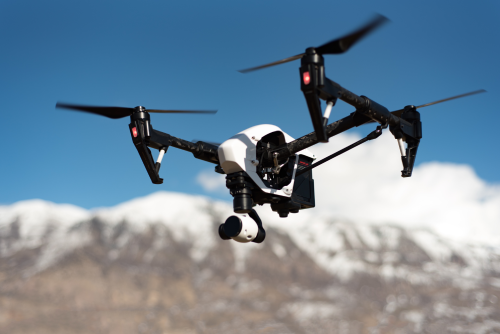
A good aerial timelapse can make slow-moving clouds, changing light, and city motion look dramatic in just a few seconds. This drone timelapse tutorial for beginners shows you the easiest way to shoot one well, with practical camera settings, simple planning, editing steps, and India-specific safety checks. If you start with a basic hover timelapse instead of a complex moving shot, you can get useful results much faster.
Quick Take
- Start with a hover timelapse in an open area before trying a moving hyperlapse.
- The most important beginner settings are:
- Lock exposure
- Lock white balance
- Lock focus, if your drone allows it
- Keep ISO as low as possible
- Use this simple formula:
Number of photos needed = desired video length × frame rate - For most beginners, 25 fps is an easy export choice, especially if you already edit other footage on a 25 fps timeline.
- A 10-second timelapse at 25 fps needs 250 photos.
- Good first subjects:
- Clouds
- Sunrise or sunset light change
- Water movement
- Distant traffic from a legal, safe location
- In India, always verify the latest DGCA, Digital Sky, local airspace, and location permissions before flying.
- Do not fly over crowds, near airports, around sensitive government or defence locations, or in bad weather.
What a drone timelapse actually is
A drone timelapse is a sequence of photos taken at intervals and played back quickly as a video. Instead of recording continuous video, the drone captures one frame every 2, 3, 5, or more seconds. When those photos are turned into a clip, time appears to move faster.
This is different from simply speeding up normal video.
Timelapse vs hyperlapse vs sped-up video
| Method | What it is | Best for beginners? | Main advantage | Main limitation |
|---|---|---|---|---|
| Hover timelapse | Drone stays mostly in one position while shooting interval photos | Yes | Easiest and safest way to learn | Less dramatic movement |
| Moving timelapse / hyperlapse | Drone changes position slowly during the sequence | Not first try | Very cinematic | Harder to keep smooth and consistent |
| Sped-up video | Record normal video, then speed it up in editing | Yes | Works even without timelapse mode | Lower flexibility and often less “clean” than photo-based timelapse |
For your first few attempts, a hover timelapse is the best choice. It is easier on battery, easier to frame, and easier to edit.
What you need before you start
You do not need a huge kit. For a basic drone timelapse, you mainly need:
- A drone with:
- stable hover
- GPS lock
- a camera with manual control or at least exposure lock
- built-in timelapse or interval shooting, if available
- Fully charged flight batteries
- A reliable memory card with enough free space
- A clean lens
- A weather check before flying
- A simple editing app or desktop editor
Useful extras:
- ND filters, if your drone supports them
- Spare propellers
- A landing pad if the ground is dusty
- A notebook or phone note to track settings that worked well
If your drone does not support a true timelapse mode, you can still make a decent result by recording stable video and speeding it up later. That method is covered below.
The simple math behind every timelapse
This is the part many beginners skip, and then they come home with too few frames.
The basic formula
Photos needed = clip length in seconds × frame rate
Examples:
- 5-second clip at 25 fps = 125 photos
- 8-second clip at 25 fps = 200 photos
- 10-second clip at 25 fps = 250 photos
Capture time formula
Total capture time = number of photos × interval
So if you want a 10-second clip:
- 250 photos at a 2-second interval = 500 seconds
- 500 seconds = 8 minutes 20 seconds
That means your drone must stay stable, legal, and safe in the air for that full duration, with battery left for landing.
Easy starting intervals
| Scene | Suggested interval | Why it works |
|---|---|---|
| Fast clouds on a windy day | 2 seconds | Captures clear movement |
| City traffic from a safe distance | 2 to 3 seconds | Keeps vehicle motion visible |
| Sunrise or sunset light change | 3 to 5 seconds | Balances motion and battery use |
| Slow shadows across land or buildings | 5 to 10 seconds | Long changes do not need frequent frames |
| Very slow landscape change | 5 to 10 seconds | Saves battery and storage |
If you are unsure, start with 2 or 3 seconds. That is a forgiving beginner range.
Best beginner scenes for India
You do not need an exotic location. You need a safe subject with visible change over time.
Good starting scenes include:
- Cloud movement over hills, lakes, or open fields
- Sunrise light hitting buildings from a legal open area
- Sunset over a beach or river, where drone flying is permitted
- Water movement along a coast, backwater, dam, or reservoir from a safe distance
- Distant city traffic viewed from a legal and non-crowded location
- Seasonal landscape changes:
- monsoon clouds
- winter haze clearing after sunrise
- golden-hour light over farmland
Avoid making your first timelapse in a dense city core, near a wedding, above a mela, near a temple crowd, or anywhere with heavy public movement. In India, privacy and local sensitivity matter as much as flying skill.
Safety, privacy, and legal checks in India
Before every timelapse flight, do the boring checks first. They matter more than your edit.
What to verify before takeoff
- Check the latest DGCA and Digital Sky guidance for your drone category and the area where you want to fly.
- Confirm the location is not in restricted or prohibited airspace.
- Verify whether your drone needs current registration, marking, or other compliance steps.
- Use a compliant drone and process where applicable, including NPNT-related requirements, if those apply to your operation.
- Make sure your flight is during legal and safe operating hours unless you have specific approval otherwise.
- Get permission from the property owner or site authority where needed.
- If it is a commercial shoot, verify whether additional local permissions are required.
Safety rules that matter for timelapse work
- Maintain visual line of sight.
- Stay well clear of airports, heliports, defence areas, power infrastructure, and sensitive government locations.
- Do not fly over crowds, busy roads, railway tracks, schools, stadiums, or religious gatherings.
- Avoid wildlife areas unless you have explicit permission and know the local rules.
- Do not fly in rain, strong gusts, or lightning-prone conditions.
- Be extra careful in Indian summers and monsoon months:
- heat affects batteries
- wind can change quickly
- moisture can damage the drone
- Respect privacy. Do not hover over homes or film people in a way that feels intrusive.
Rules can change, and local enforcement can vary. If you are unsure, verify first and choose a simpler location.
Step-by-step drone timelapse tutorial for beginners
1. Pick one clear subject
A timelapse works best when one thing changes noticeably over time.
Choose one main subject such as:
- clouds moving across the sky
- sun setting behind a skyline
- boats moving on water
- traffic flowing through a junction seen from a safe, legal distance
- shadows stretching across a field
If too many things compete for attention, the clip feels messy.
A good beginner question is:
What will visibly change in the next 5 to 10 minutes?
If you cannot answer that, pick a different subject.
2. Choose the right time and weather
The best timelapses happen when light and motion both help you.
Good conditions:
- early morning
- late afternoon
- calm to light wind
- clear cloud patterns
- light changes that are gradual, not harsh
Hard conditions for beginners:
- strong midday sun
- gusty wind
- haze so thick that the frame looks flat
- rain or spray near the sea
- low light that forces slow shutter speeds and noisy images
In many parts of India, early morning can give cleaner air, softer light, and fewer people on the ground. That makes it a smart beginner window.
3. Plan the shot before takeoff
Do not launch first and think later. Decide your composition on the ground.
Ask yourself:
- Is the horizon level?
- What is the main subject?
- Is there a foreground, midground, and background?
- Will the scene still look interesting after 5 to 10 seconds of playback?
- Is there enough battery for setup, capture, and safe landing?
A simple composition formula:
- Put the horizon roughly on the upper or lower third
- Leave space in the direction of movement
- Avoid clutter at the edges of the frame
- Keep the subject easy to read
For example, if clouds are moving left to right, leave more visual space on the right so the motion feels natural.
4. Set your camera properly
This is where most beginner timelapses go wrong. The main problem is inconsistency.
Beginner settings that usually work
- Mode: Timelapse or interval photo mode
- ISO: Lowest available, usually ISO 100
- White balance: Fixed, not auto
- Exposure: Manual if possible, or exposure lock
- Focus: Lock it once set, if your drone allows it
- Format: JPEG for easy start, RAW or RAW+JPEG if you plan heavier editing
Why locking settings matters
If your drone keeps changing exposure or white balance during the sequence, your final clip will “flicker” or shift in color. That looks amateur even if the framing is good.
Shutter speed for beginners
For a first drone timelapse, prioritize sharp frames over fancy motion blur.
A safe starting approach:
- keep ISO low
- use a shutter speed fast enough to avoid blur from tiny drone movement
- if it is too bright, use an ND filter if available
If you are new, it is better to get a crisp timelapse than a soft one with too much blur.
Recommended beginner camera starting point
- ISO: lowest available
- White balance: fixed to match conditions
- Exposure: manual or locked
- Focus: set once and leave it
- Interval: 2 to 3 seconds
- Duration target: 5 to 10 seconds final clip
5. Take off, settle, and fine-tune the composition
After takeoff:
- Climb to a safe, legal altitude for the scene.
- Let the drone settle for a few seconds.
- Recheck the horizon.
- Make small framing adjustments.
- Watch for wind drift.
- Confirm battery level again before starting the sequence.
Do not rush this stage. Small framing errors become very obvious in timelapse.
If the drone is constantly fighting wind, relocate or wait. A timelapse from an unstable hover rarely looks good.
6. Start the timelapse and stop touching the controls
This is the beginner rule that saves many clips:
Once the sequence starts, leave the controls alone.
If you bump yaw, tilt, or position mid-sequence, the timelapse will jump. That can ruin the shot.
During capture:
- keep your eyes on the drone and surroundings
- monitor battery
- watch for birds
- be ready to stop if safety changes
- do not let the shot continue so long that landing becomes stressful
A shorter clean clip is better than a longer risky one.
7. Review one sequence before leaving the location
After landing, review the frames or preview clip if your system allows it.
Check for:
- flicker
- horizon tilt
- missed focus
- too little visible movement
- frame jumps
- dust spots on the lens
- battery performance
If the light is still good, repeat the shot with one improvement only. Do not change five things at once, or you will not know what helped.
8. Try a moving timelapse only after you can nail a hover shot
Once you are comfortable, you can try a moving timelapse, often called a hyperlapse.
The easiest way is with a drone that has a built-in hyperlapse or waypoint-style timelapse feature. That helps keep the path repeatable.
For your first moving attempts:
- choose a very slow path
- keep the subject large and clear
- avoid close obstacles
- do not attempt it in wind
- use an open, legally permitted area
- let the software handle the movement if your drone supports it
Manual moving timelapses are much harder than they look. For most beginners, hover timelapse is where the real learning happens.
If your drone does not have a built-in timelapse mode
You can still create a “video timelapse” by speeding up standard footage.
Simple workflow
- Record stable video in the highest practical resolution.
- Keep the movement simple: – hover – slow ascent – gentle reveal
- Edit the video and speed it up.
- Add stabilization only if needed.
- Trim to the most interesting 5 to 10 seconds.
When this method is useful
- your drone lacks interval photo mode
- you want a quick social media clip
- you are still learning exposure control
- your scene does not require a long capture
Its main downside
Because you are compressing normal video rather than building from still frames, the result may look less refined than a true timelapse. But it is absolutely good enough for practice.
Editing your drone timelapse
A good edit should make the clip look clean, not overprocessed.
If you shot interval photos
- Import the photo sequence.
- Remove bad frames, if any.
- Apply basic corrections: – exposure – contrast – white balance – highlights and shadows
- Sync the same edits across all frames.
- Use flicker reduction if your software has it.
- Export the sequence as a video.
Export settings
For most beginner use:
- Frame rate: 25 fps is a practical choice
- Duration: usually 5 to 10 seconds
- Resolution: match your project timeline
- Sharpening: keep it mild
If your other footage is already edited at 24 or 30 fps, stay consistent with that project. The key is consistency.
If you shot normal video and sped it up
- Trim the clip first.
- Increase playback speed.
- Add mild stabilization only if necessary.
- Correct exposure and color.
- Export on the same frame rate as the rest of your project.
A simple beginner edit rule
Do not overdo saturation, contrast, or transitions. Timelapse footage already has visual impact. Let the motion do the work.
Common mistakes beginners make
Using auto exposure and auto white balance
This causes flicker and color shifts. Lock both whenever possible.
Shooting in too much wind
Even a good drone will show tiny movements. In a timelapse, those movements become obvious.
Choosing a scene with no real change
A beautiful static landscape is not always a good timelapse. You need motion or changing light.
Capturing too few frames
Many beginners stop too soon. Always calculate the final clip length before takeoff.
Starting with hyperlapse
Moving timelapses are attractive, but much harder. Learn hover timelapse first.
Flying with no battery margin
Timelapse flights can quietly eat battery because the drone is airborne longer than you expect. Plan for setup, capture, and a calm landing.
Ignoring the horizon
A slightly tilted horizon becomes very distracting in an otherwise smooth clip.
Forgetting location sensitivity
A technically good shot can still be a bad decision if it invades privacy or is filmed in a place where drone use is not appropriate.
A simple first-practice plan
If you want a low-stress learning path, do these three practice shots in order:
Practice 1: Cloud hover timelapse
- Open field
- 2-second interval
- 6 to 8-second final clip
- Goal: learn framing and exposure lock
Practice 2: Sunset light change
- Safe, legal open location
- 3-second interval
- 8 to 10-second final clip
- Goal: learn patience and battery planning
Practice 3: Distant traffic or water movement
- Safe, non-crowded, legally permitted area
- 2 to 3-second interval
- 5 to 8-second final clip
- Goal: learn how different subjects move on screen
Once these look clean, then try a slow automated hyperlapse if your drone supports it.
FAQ
How many photos do I need for a 10-second drone timelapse?
At 25 fps, you need 250 photos. Multiply your desired clip length by your frame rate.
What interval should I use for my first drone timelapse?
Start with 2 or 3 seconds. It works well for clouds, traffic, and general movement without making the shoot too long.
Is a true timelapse better than just speeding up video?
Usually yes, especially for cleaner motion and more editing flexibility. But speeding up video is perfectly fine for practice or for drones that do not support interval shooting.
Should I shoot RAW or JPEG?
If you are a complete beginner, JPEG is simpler and lighter on storage. If you are comfortable editing, RAW or RAW+JPEG gives you more control over highlights, shadows, and color.
Do I need ND filters?
Not always. They help in bright conditions, especially when you want more control over exposure. But they are not required to learn the basics. Sharp, consistent frames matter more.
Why does my timelapse flicker?
The most common causes are auto exposure, auto white balance, changing light, or inconsistent frame processing. Locking settings reduces flicker a lot.
Can I shoot a drone timelapse at night?
Only if it is legal, safe, and you fully understand the risks and current rules. For beginners, night timelapse is not a good starting point because low light, visibility, and compliance become much harder. Verify the latest official rules before considering it.
What frame rate should I export at?
25 fps is a practical choice for many editors, especially if your other footage uses a 25 fps timeline. If your project is already 24 or 30 fps, stay consistent with that.
Is hyperlapse safe for beginners?
Not as a first step. It is better to master hover timelapse first. Moving shots increase the chances of drift, framing errors, and obstacle issues.
How long should my final timelapse clip be?
For most drone shots, 5 to 10 seconds is enough. Timelapse is strongest when it is short and purposeful.
Final takeaway
Your first successful drone timelapse should be simple: an open, legal location, a stable hover, a clear subject, and locked camera settings. Start with a 5 to 8-second clip, calculate your frames before takeoff, and review each attempt like a test. Once your hover timelapses look clean and consistent, then move on to more cinematic hyperlapse shots.
