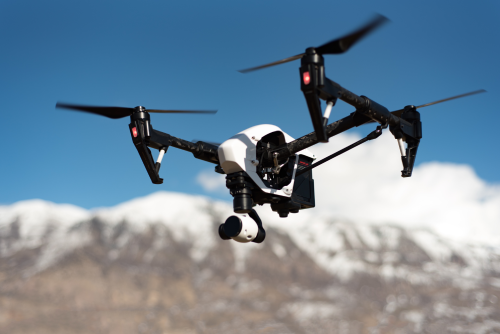
Drone color grading can make ordinary aerial footage look cleaner, more cinematic, and more professional, even if you are using a beginner-friendly drone. These drone color grading tips for beginners will help you build a simple workflow that improves your footage without making it look fake or over-edited.
If you are new to editing, the biggest win is not a fancy LUT or expensive software. It is learning how to fix exposure, white balance, contrast, and color in the right order.
Quick Take
- Start with color correction, not style. Fix exposure and white balance before adding a “look”.
- Shoot for the edit. Lock white balance, avoid blown highlights, and use ND filters in bright Indian sunlight if needed.
- If you are a beginner, a normal or mildly flat profile is often easier than heavy log footage.
- Use scopes if your editor has them. They help you judge brightness and color more reliably than a laptop screen.
- Keep saturation moderate. Drone footage often breaks quickly when pushed too hard.
- Match all clips in a sequence so the video feels consistent.
- LUTs can help, but only after correction, and usually at reduced strength.
- A clean, natural grade usually looks better than an aggressive “cinematic” grade.
Color correction vs color grading: know the difference first
Beginners often use these two terms as if they mean the same thing, but they are different.
| Step | What it means | Your goal |
|---|---|---|
| Color correction | Fix exposure, white balance, contrast, and obvious color issues | Make the footage look natural and balanced |
| Color grading | Add a creative mood or style | Make the footage feel warmer, cooler, richer, softer, or more cinematic |
| Shot matching | Make different clips look consistent | Avoid distracting shifts between shots |
A simple rule: correct first, grade second.
If your sky is too bright, buildings are too dark, or the footage has a green or blue color cast, no LUT will properly fix it. You need to correct the image first.
Good grading starts before the flight
The easiest footage to grade is footage that was captured well. Many editing problems are actually shooting problems.
Lock white balance
White balance controls whether your image looks warm, cool, green, or magenta.
If you leave white balance on auto, it may change during the shot as the drone turns toward the sun, sky, water, or trees. That creates color shifts that are difficult to fix later.
For beginner drone videography:
- Use manual white balance when possible
- Keep it consistent across shots in the same scene
- If the light changes, reset it before the next shot rather than letting the camera drift mid-shot
This is especially useful in India, where outdoor light can shift quickly between open sun, haze, shade, and reflective surfaces.
Protect highlights
Highlights are the brightest parts of the image, like clouds, reflective water, white temple domes, pale rooftops, or bright wedding decor.
If highlights are completely clipped, they usually cannot be recovered in editing.
Try to:
- Expose slightly carefully rather than too bright
- Watch the sky and reflective surfaces
- Accept slightly darker shadows if it saves the highlights
A blown-out sky looks cheap very quickly.
Use ND filters in strong daylight
An ND filter is like sunglasses for the camera. It reduces the amount of light entering the lens.
In bright Indian conditions, especially midday in summer or on beaches, an ND filter can help you keep more natural motion blur and avoid a harsh, overly sharp video look.
This does not directly change color grading, but it improves the quality of the footage you will grade later.
Be realistic about flat and log profiles
Many drones offer normal, flat, or log-style color profiles.
- Normal profile: already contrasty and saturated, easiest for beginners
- Flat profile: lower contrast and saturation, gives more room to edit
- Log profile: very flat image designed for grading, but less forgiving if mishandled
If you are just starting out, you do not have to shoot log. In fact, many beginners get worse results because they push log footage too far, add a strong LUT, and end up with noise, banding, or strange colors.
For social media, travel clips, real estate, or quick edits, a normal or mildly flat profile can be the smarter choice.
Shoot at better times of day
Color grading works best when the light already looks good.
Best times for drone footage:
- Early morning
- Late afternoon
- Just before sunset
- Bright overcast conditions for soft contrast
Hard midday light is common in India, but it creates strong shadows, washed-out colors, and a high-contrast sky that is harder to grade naturally.
A simple beginner workflow for drone color grading
The exact buttons differ in DaVinci Resolve, Premiere Pro, Final Cut Pro, CapCut, and other editors, but the order of work is similar.
1. Start with your best clips
Do not try to rescue every shot.
Choose clips that already have:
- Stable movement
- Good framing
- No major exposure failure
- No severe shake
- No prop shadow or unwanted flicker
Editing weak footage harder rarely makes it strong.
2. Work in a standard output color space
For most beginners delivering to YouTube, Instagram, or client previews, a standard Rec.709 workflow is the easiest starting point.
Rec.709 is the common color space used for most web video. If you do not understand advanced color management yet, keep your workflow simple and standard.
3. Correct exposure first
Before touching color style, fix brightness.
Look at:
- Sky detail
- Building and tree shadows
- White surfaces
- Faces, if people are visible
A simple order:
- Adjust overall exposure
- Pull highlights down if needed
- Lift shadows carefully
- Set contrast
- Fine-tune black and white levels
Use small moves. Drone footage, especially from entry-level cameras, can fall apart if you try to force extreme recovery.
4. Fix white balance
Now make the image neutral.
Use temperature and tint controls:
- Temperature fixes blue vs orange
- Tint fixes green vs magenta
Good reference points:
- White walls should not look blue
- Clouds should not look yellow
- Roads and concrete should not look green
- Skin tones in people shots should look believable, not orange
If your drone footage was shot during golden hour, some warmth is natural. Neutral does not mean lifeless. It means controlled.
5. Add contrast slowly
Most beginner grades fail because contrast is pushed too hard.
Too much contrast can:
- Crush shadow detail in trees and roads
- Make city haze look ugly
- Create a cheap “HDR” look
- Reduce the natural depth of skies and clouds
A better approach:
- Add a little contrast
- Check whether important shadow details are still visible
- Make sure the sky still has a gradient, not just flat white or dark blue
6. Increase saturation carefully
Saturation boosts overall color intensity.
This is where many drone videos start to look artificial. India already offers strong colors naturally: bright buildings, wedding decor, crops, markets, clothing, painted roofs, coastlines, and green landscapes. You usually need less saturation than you think.
Try this approach:
- Add a small amount first
- Stop before greens become neon
- Watch orange and red objects carefully
- Check that water does not turn electric cyan
If your editor offers vibrance, it can be safer than saturation because it tends to protect already-strong colors better.
7. Use HSL controls for problem colors
HSL means Hue, Saturation, and Luminance.
This helps when one color is misbehaving, even if the rest of the shot looks fine.
Useful beginner fixes:
- Greens too bright: reduce green saturation slightly
- Blue sky too heavy: lower blue saturation or luminance a little
- Yellow buildings too harsh: reduce yellow saturation
- Water too cyan: shift aqua toward blue and reduce intensity
- Skin too orange in low sunlight: soften orange saturation slightly
This is one of the best tools for drone footage because landscapes often contain large areas of one strong color.
8. Match your clips
Even a good single shot looks bad in a sequence if the next clip is cooler, darker, or more saturated.
When matching clips, compare:
- Brightness
- White balance
- Contrast
- Saturation
- Sky color
- Grass and tree tones
If you shot one clip facing the sun and another away from it, they may never match perfectly. Get them close enough that the change does not distract the viewer.
9. Add a look only after correction
Once your footage looks balanced, then you can stylize it.
Easy beginner looks:
- Natural travel look: mild contrast, slightly warm highlights, controlled greens
- Real estate look: clean whites, moderate contrast, neutral colors
- Sunset look: a bit more warmth, softer contrast, richer orange tones
- Cinematic muted look: lower saturation, deeper contrast, slightly cooler shadows
Keep it subtle. Good grading often feels invisible.
10. Use sharpening and noise reduction sparingly
Drone footage can become noisy when you lift shadows, add clarity, or use strong dehaze.
Be careful with:
- Over-sharpening rooftops and trees
- Heavy noise reduction that smears detail
- Too much texture or clarity on hazy city shots
If you notice grain or mushy detail, back off the grade rather than trying to repair it aggressively.
A practical “first grade” recipe for beginners
If you feel lost, use this order on one clip:
- Reset the image so no old effects interfere
- Fix exposure
- Reduce blown highlights if possible
- Lift shadows slightly
- Correct white balance
- Add mild contrast
- Increase saturation a little
- Tame one problem color with HSL
- Match the next clip to the first
- Add only a light creative look at the end
This simple sequence will take you much further than randomly moving sliders.
Common drone footage problems and easy fixes
| Problem | Likely cause | Beginner fix |
|---|---|---|
| Sky looks white and empty | Overexposed highlights | Lower highlights, reduce exposure, shoot earlier or later next time |
| Greens look fake | Too much saturation or vibrance | Reduce green saturation and contrast slightly |
| City footage looks dull | Haze, flat light, pollution | Add contrast gently, use dehaze carefully, avoid over-sharpening |
| Water looks unnatural | Blue and aqua pushed too far | Reduce aqua saturation and shift color slightly toward natural blue |
| Shadows look noisy | Underexposed footage lifted too much | Lower shadow lift, reduce aggressive grading, expose better in camera next time |
| Clips do not match | Auto white balance or changing light | Manually match temperature, tint, and exposure across shots |
India-specific drone color grading tips
Indian conditions can be beautiful, but they also create editing challenges that beginners should expect.
Haze in city footage
In cities like Delhi, Mumbai, Kolkata, Bengaluru, or many industrial zones, aerial footage often has haze, low contrast, and muted distance detail.
What helps:
- Add contrast gently, not heavily
- Use dehaze with restraint
- Keep blues natural
- Do not over-sharpen skylines
Too much dehaze can make the image crunchy and noisy very fast.
Bright roofs, temples, and beaches
White or light-colored surfaces in India can blow out easily, especially in summer sun.
Be careful with:
- White domes
- Marble surfaces
- Concrete terraces
- Sand and shoreline highlights
- Reflective water
In grading, preserve detail first. A slightly softer image is better than a clipped, harsh one.
Monsoon greens
During the monsoon, fields, forests, and hills can look rich and beautiful, but beginners often push them too hard.
If everything becomes bright neon green, the footage starts to look synthetic.
Try:
- Slightly lowering green saturation
- Adding a little contrast
- Keeping skin tones and roads neutral
- Letting the natural richness do the work
Wedding and event footage
Drone footage at weddings, processions, resorts, and outdoor events often includes people, clothing, lights, flowers, and decor.
Your grading priorities should be:
- Keep skin tones believable
- Protect reds, oranges, and golds from clipping
- Avoid over-saturating festive colors
- Match day and evening footage carefully
When people are visible, viewers notice bad color faster.
Mixed light after sunset
At dusk, you may see blue sky, warm street lights, LEDs, decorative lights, and vehicle headlights in the same frame.
This is difficult for any camera.
Best approach:
- Keep the overall look balanced rather than perfect
- Avoid trying to neutralize every warm light
- Reduce saturation before colors become messy
- Accept some mood from the natural lighting mix
Should beginners use LUTs?
A LUT, or Look-Up Table, is a preset that remaps color and contrast.
LUTs can be useful, but beginners often misuse them.
When LUTs help
- Converting flat footage to a more normal-looking image
- Getting a quick starting point
- Building consistency across similar shots
When LUTs hurt
- Applied before correction
- Used at full strength without adjustment
- Added to badly exposed footage
- Used on footage that was shot in the wrong profile
A safer beginner method:
- Correct the footage first
- Apply the LUT
- Lower its intensity
- Fix any broken colors after that
Never assume a LUT is a magic fix. It is only a starting point.
Common mistakes beginners make
Grading before correcting
If exposure and white balance are wrong, your creative grade will sit on a broken image.
Pushing saturation too far
Drone shots of fields, roofs, beaches, and markets can become cartoonish quickly.
Crushing shadows
Deep black shadows may look dramatic at first, but they often hide useful detail and make footage look cheap on phones.
Overusing dehaze
A little dehaze can help. Too much creates halos, noise, and ugly textures.
Trusting only your laptop screen
Screens vary a lot. If your software has scopes, use them. Also check the final export on a phone and another display if possible.
Using auto white balance while shooting
This causes shifts that are much harder to fix than people expect.
Trying to rescue badly shot footage
Color grading improves footage. It rarely completely saves poor capture.
Copy-pasting one look onto every scene
A beach shot, a hazy city shot, and a cloudy hill shot should not all be graded the same way.
Safety, legal, and compliance reminders for Indian drone creators
Color grading happens after the flight, but legal and safe capture still matters.
Before flying in India:
- Verify the latest official DGCA and Digital Sky requirements before your shoot
- Check whether the location has airspace, local, event, or property restrictions
- Do not assume a venue booking automatically gives you permission to fly a drone
- Avoid unsafe flights near crowds, roads, airports, sensitive areas, or emergency activity unless you are properly authorised
- Respect privacy, especially in residential areas, weddings, resorts, and public gatherings
- Be cautious in strong wind, dust, coastal gusts, or monsoon weather, because bad conditions hurt both safety and image quality
No amount of color grading can fix footage captured through unsafe or non-compliant flying.
FAQ
Do I need log footage to color grade drone video?
No. You can color grade normal footage too. For beginners, normal or mildly flat footage is often easier and gives better results than poorly handled log footage.
What is the best profile for a beginner?
Usually a normal or lightly flat profile. It gives you enough room to improve the image without making the footage too difficult to process.
Why does my drone footage get noisy after grading?
Most often because the original shot was underexposed, and you lifted shadows too much. Strong dehaze, clarity, or heavy LUTs can also reveal noise.
How do I make my drone footage look cinematic without overdoing it?
Use mild contrast, controlled saturation, smoother clip matching, and a consistent white balance. Good movement and good light matter more than heavy grading.
Is saturation the same as vibrance?
No. Saturation boosts all colors more directly. Vibrance usually adjusts weaker colors more gently and can be safer for beginners.
Can I color grade on a normal laptop?
Yes, but do not trust the screen completely. Use scopes if available, keep changes moderate, and check the export on at least one other device.
How do I fix hazy drone footage from Indian cities?
Add contrast slowly, use dehaze lightly, and avoid over-sharpening. If the shot was captured in harsh conditions, aim for a clean, natural result rather than trying to force extreme clarity.
Should I use free LUTs from the internet?
You can test them, but use caution. Many are too strong, not designed for your drone profile, or create crushed shadows and odd colors. Always correct first and reduce LUT intensity.
What export approach is best for YouTube or Instagram?
Export in the same frame rate as your timeline, keep the color space standard for web delivery, and use a high-quality setting supported by your editor. Before publishing, watch the final file on a phone and a larger screen.
Final takeaway
For your next edit, keep it simple: correct exposure, fix white balance, add gentle contrast, control saturation, and only then try a light creative look. If you also lock white balance and shoot in better light on your next flight, your drone footage will improve more from those two habits than from any dramatic LUT pack.
