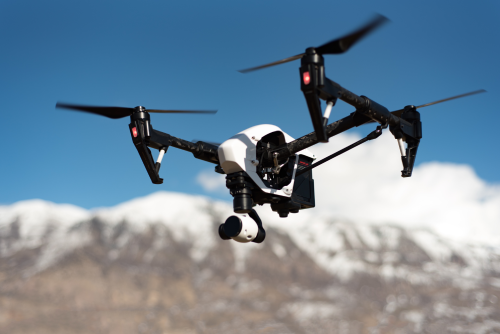
If you want to learn how to edit drone videos for cinematic results, focus less on flashy effects and more on story, pacing, colour, and clean movement. A cinematic drone edit is usually built in the edit room: choosing the right shots, shaping them into a sequence, and giving them a consistent mood without overdoing it.
Quick Take
- Start with your best 5 to 15 clips, not every clip you flew.
- Build a simple story: opening shot, movement, reveal, closer detail, ending shot.
- Use a timeline that matches your final delivery: 24, 25, or 30 fps, and horizontal or vertical.
- Fix the basics before grading: horizon level, exposure, white balance, and stabilisation.
- Colour correction comes first; colour grading comes after.
- Use speed ramps, transitions, and LUTs sparingly. Cinematic usually means restrained, not busy.
- Add music and ambient sound carefully. Good sound makes drone footage feel bigger and more polished.
- In India, haze, harsh sunlight, mixed lighting, and crowded locations often need extra care in post.
- Before publishing, make sure the footage was shot and is being used legally. Verify the latest DGCA and local requirements before acting.
What makes a drone video look cinematic
“Cinematic” does not just mean dark shadows, orange skin tones, and slow motion. In drone editing, cinematic usually comes from five things:
- A clear visual story
- Stable, intentional movement
- Good pacing
- Natural-looking colour
- Strong audio and clean finishing
A cinematic drone video often feels deliberate. The viewer knows where to look. The cuts feel smooth. The colour mood stays consistent. The video ends before it becomes repetitive.
What editing can fix, and what it cannot
Editing can improve a lot:
- Slight horizon tilt
- Small exposure inconsistencies
- Mild shake
- Dull colour
- Weak pacing
- Uninspired shot order
But editing cannot fully rescue:
- Blown-out skies with no detail
- Very noisy night footage
- Severe jitter from fast wind
- Choppy motion caused by poor capture settings
- Shots with bad composition
- Footage captured recklessly or illegally
That matters because many beginners try to “save” weak drone footage with heavy effects. Usually, the better approach is to cut faster, use fewer clips, and keep the grade simple.
Before you edit: set up the project properly
A smooth workflow saves more time than any plugin.
Choose software that suits your device and skill level
You do not need the most expensive editor to get cinematic results.
Good beginner-friendly options include:
- DaVinci Resolve for strong colour tools and a capable free version
- Adobe Premiere Pro for a familiar editing workflow and wide professional use
- Final Cut Pro for fast editing on Mac
- CapCut, VN, or LumaFusion for quick edits on phone or tablet
If your laptop struggles with 4K drone files, use proxies. A proxy is a lighter copy of your footage used only for editing. Your software later uses the original full-quality clips for export.
Set the right timeline from the start
Choose these based on where the video will be published.
- 24 fps: classic film-style feel
- 25 fps: often practical in India, especially if you also shoot under 50 Hz artificial lighting
- 30 fps: common for YouTube and social content
If you shot footage at 50 or 60 fps, you can slow it down on a 25 or 30 fps timeline for smoother motion.
Also decide:
- Horizontal 16:9 for YouTube, websites, presentations, real estate, and most long-form work
- Vertical 9:16 for Reels, Shorts, and similar short-form platforms
If possible, edit from 4K footage even when delivering in 1080p. It gives you room to crop, stabilise, and reframe.
A practical step-by-step workflow for cinematic drone edits
1. Back up and organise your footage
Before you touch the timeline:
- Copy footage to your computer and one backup drive
- Create folders by project, date, and location
- Rename clips if needed
- Separate drone footage, ground footage, music, and sound effects
A clean folder structure matters even for hobby work. It matters even more if you shoot weddings, tourism, or real estate projects for clients.
A simple structure could be:
- Project name
- Drone RAW
- Ground Camera
- Music
- Sound Effects
- Exports
- Project Files
2. Review everything and mark only the usable clips
Watch all footage once without editing. Then make a shortlist.
Mark clips that have:
- Smooth movement
- Strong composition
- Clean horizon
- Good light
- Useful subject action
- Clear beginning and end motion
Reject clips with:
- Jerky stick inputs
- Sudden yaw spins
- Distracting people or vehicles entering awkwardly
- Propellers visible in frame
- Severe overexposure
- Focus issues
This is where many cinematic edits are made or ruined. Strong editors are ruthless. If a clip is only “okay,” it probably should not stay.
3. Build a sequence, not a slideshow
Beginners often place random beautiful shots one after another. Cinematic edits work better when the shots feel connected.
A simple drone sequence often looks like this:
- Establishing shot: a wide opening that shows the location
- Approach shot: moving toward the subject
- Reveal shot: uncovering the subject from behind trees, buildings, or terrain
- Detail or medium shot: closer look at texture, structure, or action
- Exit or closing shot: pulling away or rising out
Example: travel edit
If you filmed a hill fort in Maharashtra or a beach road in Goa, your order could be:
- Wide sunrise aerial
- Forward move toward the fort wall
- Reveal of the main structure from behind a tree line
- Top-down shot of the courtyard or road bend
- Pullback ending into the landscape
That feels like a journey, not a folder preview.
4. Trim each shot for movement and purpose
Drone clips are often too long. A 20-second raw clip may only contain 3 to 5 seconds worth keeping.
Look for the best segment of motion:
- Start just before the movement becomes interesting
- Cut out the boring “take-off settling” part
- End before the shot slows down or gets messy
As a rule, if the viewer understands the shot quickly, move on. Long holds only work when the scene is truly dramatic.
Cut to the beat, but do not become mechanical
Music can help you place cuts, but do not cut every shot exactly on every beat. That can make the edit feel like a template.
Better options:
- Cut on major beat changes
- Use softer cuts during quieter moments
- Let one strong shot breathe longer than the rest
5. Fix stabilisation, horizon, and lens issues
Once your rough cut is ready, clean up the image.
Level the horizon
A slightly tilted horizon instantly makes drone footage feel amateur. Use rotation or horizon tools to straighten it.
Be careful not to crop too much. If the tilt is severe, the shot may not be worth saving.
Stabilise only when needed
Most modern drones already stabilise well. Extra digital stabilisation can help mild shake, but too much can create:
- Wobbly edges
- Warped buildings
- Cropping that changes composition
Use it gently.
Correct lens distortion when appropriate
Wide drone lenses can make buildings or horizons look stretched. For architecture, real estate, or commercial work, subtle lens correction can make the footage look cleaner and more premium.
6. Do colour correction before colour grading
These are different steps.
- Colour correction means fixing the image so it looks technically right.
- Colour grading means shaping the image to create a mood or style.
Do correction first.
Correct the basics
For each selected clip, adjust:
- Exposure: overall brightness
- Contrast: difference between bright and dark areas
- Highlights: bright sky or reflective areas
- Shadows: darker buildings, trees, roads
- White balance: whether the image looks too blue, yellow, or green
- Saturation: overall colour intensity
A good test: if your clips come from different times or angles, can they still sit together naturally in one timeline?
Match your clips
Cinematic edits feel polished when shot-to-shot colour is consistent.
Try matching:
- Sky colour
- Green tones in trees or farms
- Building brightness
- Skin tones if people are visible
- Overall warmth or coolness
This is especially important in India, where scenes can shift quickly from warm sunlight to cool shadow, or from natural daylight to mixed market lighting.
7. Grade for mood, not for shock value
Once the image is corrected, apply your look.
Use LUTs carefully
A LUT is a look-up table, basically a preset that changes colour and contrast. LUTs can speed up your workflow, but they are not magic.
Use them like a starting point, not a final result.
Common beginner mistake: – Apply one strong LUT – Increase intensity – End up with crushed blacks, neon greens, and unnatural skies
A better approach: – Lower LUT intensity – Adjust exposure after applying it – Fine-tune skin tones, greens, and blue skies manually
Popular cinematic grading directions that work well with drone footage
- Warm highlights and cooler shadows for travel and lifestyle content
- Soft contrast and slightly muted colours for luxury real estate
- Richer greens and warm sunset tones for nature and tourism
- Neutral, clean grade for industrial, mapping, or corporate work
Be careful with Dehaze tools
If you shoot around Indian cities, industrial belts, or humid coastal locations, your footage may look flat because of haze.
A Dehaze tool can help, but too much can:
- Create ugly halos
- Add noise
- Make colours look crunchy
- Turn skies unnatural
Use it lightly, then fix contrast and colour manually.
8. Use speed changes only when they support the shot
Slow motion and speed ramps are popular, but overused speed effects make drone footage look like a social media template rather than a film.
When slow motion works
Slow down footage when:
- The drone movement is smooth and graceful
- Water, trees, or people add subtle motion
- You want to create scale or drama
When speed ramps work
A speed ramp means gradually changing speed within a shot.
Use it for:
- A reveal shot
- An approach to a building or landmark
- A transition between calm and energetic music sections
Avoid speed ramps when: – The shot already has shaky movement – The subject is small and far away – The move is simple and does not need emphasis
9. Keep transitions simple
The best transition is usually a clean cut.
You can also use:
- Fade in or fade out
- Cross dissolve, very sparingly
- Motion-based cut when two shots move in similar directions
Avoid excessive use of:
- Spin transitions
- Zoom flashes
- Whip effects added in post
- Glitch effects for otherwise calm footage
Drone footage already has visual scale. You do not need to force excitement into every cut.
10. Add sound design even if the drone audio is unusable
Onboard drone audio is rarely useful because propeller noise dominates. But silent drone footage often feels incomplete.
Good sound design can include:
- Wind
- Birds
- Waves
- Distant traffic
- Temple bells
- Market ambience
- Footsteps
- Soft whooshes for reveals
Keep it subtle. The goal is to make the viewer feel the place, not notice the effect.
Pick music that matches the movement
Match the music to the video’s emotional purpose:
- Travel montage: uplifting or atmospheric
- Resort or villa: elegant and calm
- Wedding film: emotional and warm
- Industrial or commercial: steady and confident
Make sure you have the right to use the track. Copyright issues can affect posting, monetisation, and client deliveries.
11. Reframe for the platform instead of blindly cropping
A lot of drone footage is shot wide for horizontal viewing, but many creators later need vertical edits for Reels or Shorts.
When reframing:
- Keep the main subject in the upper-middle area if the scene is tall
- Use keyframes to track subject movement in a vertical crop
- Avoid cutting off buildings, roads, or people awkwardly
- Do not force every wide landscape into vertical if it loses its meaning
A smart workflow is to finish one master horizontal edit, then create a shorter platform-specific version.
12. Export a clean master and platform versions
When your timeline is done:
- Export one high-quality master file for archive
- Then export versions for each platform or client need
- Check the final video on phone and laptop screens
- Watch for banding in skies, crushed shadows, and over-sharpening
Common export choices are H.264 or H.265, depending on your workflow and device support. More important than any single codec is this: keep a high-quality master so you do not have to rebuild the edit later.
India-specific editing tips that make a real difference
Haze is common, so preserve sky detail while filming and edit gently
Footage from cities or hot afternoons can look washed out. In post:
- Bring down highlights first
- Add contrast slowly
- Use Dehaze carefully
- Protect blue skies from becoming too dark
- Watch tree lines for noisy edges
Midday footage needs extra discipline
Many Indian creators fly between late morning and afternoon because of travel schedules, weddings, or permissions. Midday light is harsh.
In editing:
- Reduce highlight harshness
- Avoid heavy saturation
- Keep shadows soft enough to retain detail
- Use shorter edits so flat lighting does not become repetitive
Green scenes can become too loud in monsoon and post-monsoon footage
Fields, hills, and resort lawns can look beautiful but unnatural if oversaturated.
Try this instead:
- Slightly reduce green saturation
- Shift green tones subtly toward natural olive or softer green
- Keep skin tones realistic if people appear in frame
Mixed lighting is common in events and city scenes
Wedding venues, street markets, and commercial areas often mix warm decorative lights with cool LEDs.
Correct white balance shot by shot. One global preset rarely works.
Common mistakes that stop drone videos from looking cinematic
Overediting everything
Not every shot needs: – a LUT – a transition – a speed ramp – a sound effect – a zoom-in
Restraint is a big part of cinematic style.
Keeping too many similar shots
If you have four orbit shots of the same building, use the best one. Repetition weakens impact.
Pushing colours too hard
Small drone sensors often break apart when you push shadows, saturation, and contrast too far. The edit may look good on your screen but bad after platform compression.
Ignoring consistency
A cinematic video should feel like one film, not five different presets in one timeline.
Forgetting the ending
Many drone videos start strong and then simply stop. Give the edit a proper closing shot or fade.
Making every video slow
Slow pacing can feel premium, but too much of it becomes dull. Balance calm shots with movement and progression.
Safety, legal, and compliance checks before you publish
Even though this is an editing topic, publishing drone footage has real legal and ethical implications.
Before using footage commercially or posting it widely, keep these points in mind:
- Verify the latest DGCA and Digital Sky requirements before flying or using footage from sensitive areas.
- Do not assume that because footage exists, it was captured legally.
- Check local restrictions around airports, government areas, strategic sites, monuments, wildlife zones, and event venues.
- If you filmed on private property, get the required permission from the owner or organiser where needed.
- Respect privacy. Avoid publishing identifiable people in sensitive situations without appropriate consent.
- Be especially cautious with children, residential areas, and crowd footage.
- Use properly licensed music, sound effects, fonts, and graphics.
- If you work for clients, confirm whether they want location names, logos, or registration details shown or hidden.
If you are unsure about the legality of the flight or the right to publish the footage, verify before uploading or selling the final edit.
FAQ
Which editing software is best for beginners editing drone videos?
For beginners on a budget, DaVinci Resolve is a strong choice if your computer can handle it. If you prefer simpler editing on phone or tablet, CapCut, VN, or LumaFusion can work well for short-form content. Choose the tool you can use consistently rather than the one with the longest feature list.
Should I edit drone videos at 24 fps, 25 fps, or 30 fps?
Use 24 fps for a classic cinematic feel, 25 fps if it better fits your camera setup or lighting conditions in India, and 30 fps for many web-first projects. The most important thing is consistency across the project.
Can shaky drone footage be made cinematic in editing?
Mild shake can often be improved with stabilisation. Severe shake, jerky turns, or wind wobble usually cannot be fully fixed without visible distortion. In many cases, a shorter cut or replacing the clip is better than over-stabilising it.
Is a LUT enough to make my footage look cinematic?
No. A LUT can help as a starting point, but it cannot fix bad exposure, poor white balance, or weak shot selection. Good cinematic results come from correction, matching, grading, and strong editing decisions.
How long should a cinematic drone video be?
For social media, 15 to 45 seconds often works well. For YouTube, travel films, real estate, or client showcases, 60 to 120 seconds can be enough if every shot earns its place. Shorter and stronger usually beats longer and repetitive.
How do I edit hazy drone footage from Indian cities?
Start by protecting highlights, then add contrast carefully. Use Dehaze lightly, reduce any colour cast, and avoid crushing blacks. If the haze is severe, aim for a softer, atmospheric look rather than trying to fake crystal-clear mountain air.
Should I sharpen drone footage in post?
Only slightly, if at all. Many drones already apply sharpening internally. Too much extra sharpening creates harsh edges, noisy trees, and ugly compression later.
What is the best export format for drone videos?
A high-quality master export is the safest first step. After that, create upload versions in a widely supported codec such as H.264 or H.265, depending on your workflow. Always watch the exported file before publishing.
Can I make a cinematic video from only drone shots?
Yes, but it is harder to keep it emotionally engaging. If possible, combine drone footage with a few ground shots, ambient sound, or titles. Even one or two supporting non-drone clips can make the final piece feel more complete.
Final takeaway
If you want cinematic drone edits, do fewer things better: pick stronger clips, build a simple sequence, correct before grading, and keep your effects under control. Your next best step is practical: take one short drone shoot, edit a 30 to 60 second sequence using this workflow, and aim for clarity and consistency rather than complexity.
