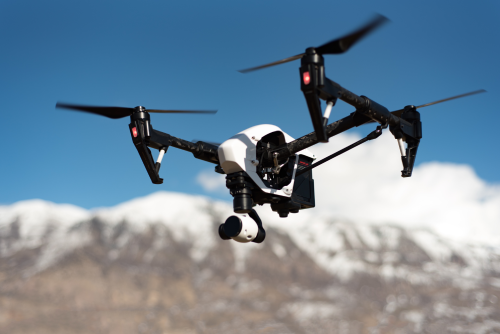
Knowing how to use Return-to-Home on a drone can save you from a flyaway, a crash, or a very expensive mistake. But RTH is only reliable when the home point, GPS lock, return altitude, and surroundings are all set correctly. This guide explains how to use Return-to-Home on a drone properly, when it helps most, and when you should not trust it blindly.
Quick Take
- Return-to-Home, or RTH, tells a GPS-equipped drone to come back to a recorded home point.
- It usually works best in open outdoor areas with strong GPS lock and a clear route back.
- Before takeoff, confirm the home point, set a safe RTH altitude, and check how your drone behaves on signal loss.
- Do not assume obstacle avoidance will detect wires, thin branches, poles, or every side of the drone.
- Low-battery RTH is a backup, not a plan. Start coming back early.
- Cheap toy drones may advertise “one-key return,” which is not always true GPS-based Return-to-Home.
- In India, RTH does not replace current DGCA rules, Digital Sky checks, or the need to keep visual line of sight.
What Return-to-Home actually does
Return-to-Home is a safety feature found on many GPS camera drones. It records a home point, usually your takeoff location, and tries to bring the drone back there when you trigger it manually or when certain conditions are met.
On many drones, RTH works like this:
- The drone checks its position and battery.
- If it is below the preset return altitude, it climbs.
- It flies back toward the home point.
- It lands or hovers for landing confirmation, depending on the model and settings.
That sounds simple, but there is an important catch: RTH is not magic. It depends on several things working properly at the same time:
- Correct home point
- Good GPS or satellite positioning
- Healthy compass and sensors
- Enough battery to return against wind
- A safe route home
- Correct settings
Also, not every “return” feature is equal. On some low-cost drones sold online, “one-key return” may only try to fly back in a rough direction based on orientation, not return precisely to the takeoff point. If the drone does not have proper GPS lock and a stored home point, treat that feature as basic assistance, not a rescue function.
The main ways Return-to-Home gets triggered
| Trigger | What starts it | What the drone usually does | What to watch |
|---|---|---|---|
| Manual RTH | You press the RTH button on the controller or in the app | Returns using the current RTH settings | Best option when you still have control and enough battery |
| Signal-loss or failsafe RTH | Controller signal drops for a set time | Returns automatically, if the failsafe action is set to RTH | Some drones can be set to hover or land instead, so check your settings |
| Low-battery RTH | Battery estimate says it is time to come back | Prompts or starts auto-return | Wind and distance can make battery estimates less forgiving than expected |
| Critical battery auto-landing | Battery is dangerously low | Often lands where it is, not at home | This is not true RTH; it is a last-resort safety action |
The biggest beginner mistake is waiting for the last two rows. If you are far away, facing headwind, or unsure of orientation, manual RTH early is usually safer than hoping low-battery RTH will save the flight.
Before takeoff: set up RTH properly
If you skip these checks, Return-to-Home can return to the wrong place or choose a dangerous route.
1. Wait for GPS lock and home-point confirmation
Do not take off the moment the motors start. Wait for your drone to confirm that the home point has been recorded.
On many drones, you will hear a voice prompt, see a message in the app, or see a home-point icon update on the map. If you take off before this happens, the drone may not know where “home” really is.
2. Check that the home point is correct
Look at the map in the app if your drone provides one. Make sure the home marker is actually where you are standing or where the drone took off.
This matters more than many pilots realize. If the home point is off, RTH may work perfectly and still go to the wrong spot.
3. Set a safe RTH altitude
This is one of the most important settings.
Your return altitude should be high enough to clear the tallest obstacle between the drone and home, such as:
- Trees
- Buildings
- Mobile towers
- Water tanks on terraces
- Light poles
- Hill edges
But do not set it absurdly high without reason. A very high RTH altitude wastes battery and can make the return slower.
In Indian cities, terrace flying often means dealing with water tanks, antennas, clotheslines, nearby buildings, and power lines. In farms and open land, tall trees and electric poles are common. Think in 3D before takeoff.
4. Choose a clear takeoff and landing spot
RTH ends at the home point, so your home point should not be under a tree, next to a wall, or in a narrow space.
A good home point is:
- Flat
- Open to the sky
- Clear of people
- Away from vehicles
- Free of overhead wires
- Easy to see during landing
If you launch from a crowded terrace corner or between obstacles, the return may be more stressful than the outward flight.
5. Check the signal-loss behaviour
Some drones let you choose what happens on signal loss:
- Return to Home
- Hover
- Land
If you are relying on RTH as your backup, make sure the failsafe action is actually set to Return-to-Home.
6. Check all batteries, not just the drone battery
A drone with 70% battery is not safe if your controller or phone is nearly dead.
Before takeoff, check:
- Flight battery
- Controller battery
- Phone or tablet battery
- App connection and warnings
7. Assess wind honestly
A drone may fly out with the wind easily and struggle badly on the way back against it. That can affect RTH too.
If the wind is strong:
- Fly closer
- Fly lower if safe and legal for the area
- Return earlier
- Avoid long-distance flights
Do not expect RTH to overcome conditions you ignored at takeoff.
8. Know how to cancel RTH
You should know two things before every flight:
- How to start RTH
- How to stop or pause it
If the drone begins returning through a risky path, you may need to cancel RTH and fly manually.
How to use Return-to-Home on a drone
Here is the practical step-by-step method most beginners should follow.
1. Power on, wait, and confirm the home point
Turn on the controller, the drone, and the app in the recommended order for your model. Wait for satellite lock and the home-point confirmation.
Do not rush this step.
2. Set or confirm the RTH altitude
Check your preset return altitude before takeoff. If your environment changes from one flight to the next, update it every time.
For example:
- Open field: moderate altitude may be enough
- Residential area: you may need more height to clear buildings and trees
- Hilly area: account for terrain and rising ground
3. Take off and hover briefly
After takeoff, hold a stable hover and check:
- GPS stability
- Video feed
- Stick response
- Warning messages
- Wind behaviour
If the drone is drifting strangely, throwing compass warnings, or showing weak GPS, do not assume RTH will fix it. Land and sort it out first.
4. Fly normally, but keep RTH in reserve
Use RTH when:
- You lose orientation
- The drone is far away and hard to judge visually
- The video feed becomes confusing
- You want a safe, clean return before battery gets low
- Signal starts feeling unreliable
The best time to use RTH is before the situation becomes urgent.
5. Trigger RTH manually when needed
On most drones, you can start Return-to-Home by pressing the dedicated RTH button on the controller or using the app.
Once triggered, watch what the drone does first. It may:
- Climb to RTH altitude
- Turn toward home
- Start flying back at current altitude if already above the return height
- Hover briefly before returning, depending on model
Do not look only at the screen. Look at the actual drone too, if possible.
6. Monitor the whole return
A common beginner error is pressing RTH and mentally checking out. Stay alert.
Watch for:
- Trees or poles in the return path
- Unexpected drift
- Poor obstacle sensing
- Wind slowing the return
- A landing area that is no longer clear
If anything looks unsafe and you still have control, cancel RTH and take over.
7. Supervise the landing
Many drones can land very accurately, but “accurate” does not mean “perfect every time.”
As the drone nears home:
- Make sure people are clear
- Check for new obstacles
- Be ready to cancel if it is landing onto an unsafe spot
- Take manual control if needed
Do not assume the last 2 metres are automatic and foolproof.
How to test RTH safely for the first time
Do not wait for an emergency to discover how your drone’s Return-to-Home behaves.
Test it deliberately.
Safe first test checklist
- Choose a wide open area with no crowd, no wires, and minimal obstacles.
- Fly in good daylight and light wind.
- Wait for strong GPS lock and confirm the home point.
- Set a sensible RTH altitude.
- Fly out a short distance, not your maximum range.
- Trigger manual RTH.
- Watch the climb, turn, return path, and landing behaviour.
- If safe, cancel RTH once and regain control, then start it again.
This teaches you four crucial things:
- How fast RTH starts
- How high the drone climbs
- How accurately it returns
- How to interrupt it if needed
Your first RTH test should not be over water, from a crowded terrace, during a paid shoot, or in a place where a mistake would be expensive.
RTH settings and behaviours that matter most
Return altitude
This is the most important RTH setting for most pilots.
Set it too low, and the drone may hit something on the way back. Set it too high, and you waste battery and time.
A good rule is simple: choose an altitude that safely clears the highest likely obstacle on the route home, with sensible margin. The exact number depends on where you are flying.
Also remember: many drones only climb to the RTH altitude if they are below it. If they are already above it, they may return at their current height.
Home point and dynamic home point
On many drones, the home point is the takeoff point. On some models, you can update it to the controller’s location or another chosen point during flight.
This matters if:
- You walked away from the takeoff spot
- You launched from a moving boat or vehicle
- Your original landing spot is no longer safe
Not every drone supports dynamic home point, and the exact method varies. Check your manual before relying on it.
Obstacle avoidance is helpful, not guaranteed
This is where many new pilots get overconfident.
Obstacle sensing can be very useful, but it has limits:
- Some drones do not sense in all directions
- Thin wires are hard to detect
- Bare branches can be missed
- Low light reduces performance
- Fast movement can reduce reaction time
- Sideways movement during RTH may not be protected on all models
Never assume RTH plus obstacle avoidance equals “crash proof.”
Precision landing
Some drones use cameras and sensors to land close to the exact takeoff spot. When it works well, it can be impressive.
But precision landing depends on conditions such as:
- Good lighting
- Clear ground texture
- Clean visual takeoff reference
- Stable sensors
If the landing spot is tight, uneven, crowded, or partly shaded, be ready to finish manually.
Battery and wind
RTH calculations are estimates, not guarantees.
A drone returning against strong wind may:
- Slow down a lot
- Use more battery than expected
- Start descending early if the battery becomes critical
That is why experienced pilots do not wait for the drone to decide when to come back.
When you should not trust RTH blindly
Return-to-Home is not the best answer in every location.
Be very careful with RTH in these situations:
- Indoors
- Under trees or a roof
- Under bridges or in covered areas
- Between buildings in narrow spaces
- Near overhead wires
- In strong wind
- From a moving launch point
- When GPS is weak or unstable
- When the home point is uncertain
- When the battery is already very low
If you are flying in a tight environment, manual control may be safer than letting the drone follow an automatic routine.
Common mistakes beginners make with Return-to-Home
- Taking off before the home point is recorded
- Forgetting to check the map location
- Setting the RTH altitude too low
- Setting the RTH altitude far too high
- Assuming obstacle avoidance will see wires
- Waiting for low-battery RTH instead of returning early
- Testing RTH for the first time in a difficult location
- Not learning how to cancel RTH
- Using RTH indoors
- Trusting “one-key return” on a non-GPS toy drone
If you avoid just these mistakes, your odds of a clean return improve a lot.
If RTH behaves unexpectedly
When Return-to-Home does something odd, the cause is usually one of a few common issues.
The drone returns to the wrong place
Likely causes:
- Home point was not properly recorded
- You took off too quickly
- GPS was weak at takeoff
- The home point was not updated after moving
The drone starts climbing into danger
Likely causes:
- Poorly chosen RTH altitude
- Takeoff point too close to buildings or overhead obstacles
The drone does not make it back cleanly
Likely causes:
- Strong headwind
- Battery already too low
- Return started too late
- Failsafe action was set to hover or land, not RTH
The drone lands a few metres away from where it started
Likely causes:
- Normal GPS drift
- Precision landing conditions were poor
- Uneven lighting or weak visual ground reference
When in doubt, do a controlled test in an open area and review your settings instead of guessing.
Safety, legal, and India-specific checks
Return-to-Home is a safety feature, not a legal shortcut.
Before flying in India, keep these points in mind:
- Verify the latest DGCA and Digital Sky requirements for your drone category and use case before you fly.
- Check whether the area is allowed for drone operations and whether any local restrictions apply.
- Keep the drone within visual line of sight unless you are operating under a lawful and specific framework that allows otherwise.
- Do not assume RTH makes long-range or risky flights acceptable.
- Avoid flying over crowds, busy roads, sensitive locations, or places where an automatic return could endanger people.
- If your drone uses geofencing, app permissions, or platform-specific unlocks, confirm them before takeoff. Do not assume RTH will override those limits.
- Respect privacy. A drone returning automatically still records what it sees.
If you use drones professionally for inspections, shoots, surveying, or client work, build RTH checks into your standard pre-flight checklist, but still plan manual recovery options.
FAQ
Does Return-to-Home work without GPS?
Usually, proper RTH needs satellite positioning and a recorded home point. Without that, the drone cannot reliably know where to return. Some toy drones offer simple “return” features, but they are not the same as GPS-based RTH.
What is the best RTH altitude to set?
There is no single best number for every flight. Set it high enough to clear the tallest obstacle on the route home, with a sensible margin, but not so high that you waste battery unnecessarily.
Will RTH avoid trees, buildings, and wires automatically?
Maybe some of them, maybe not. Obstacle sensing varies by drone, and thin wires are especially difficult to detect. Never assume RTH will safely handle every obstacle on its own.
Can I use Return-to-Home indoors?
In most cases, no. Indoor flying usually means weak or no GPS, tight spaces, and poor conditions for automatic return. Manual control is usually the only safe approach indoors.
Why did my drone land a little away from the takeoff spot?
Small landing errors can happen because GPS is not perfectly precise. Some drones improve this with precision landing, but lighting, surface texture, and sensor conditions all affect accuracy.
Should I wait for low-battery RTH to bring the drone back?
No. Low-battery RTH is a backup. If you are far away, flying into wind, or unsure of your path home, start returning earlier while you still have options.
Can I update the home point after takeoff?
Some drones allow this, and it can be useful if you have moved from the original takeoff spot. But the method differs by model, so check your manual before you depend on it.
Does RTH mean I can fly farther as long as the drone can come back?
No. In India, you should still follow the current rules that apply to your drone and operation, including visual line of sight and location restrictions. RTH is a safety aid, not permission for careless or non-compliant flying.
Final takeaway
If you remember only four things, make them these: wait for GPS lock, confirm the home point, set the right RTH altitude, and know how to cancel the return.
Before your next serious flight, do one deliberate RTH test in a wide open area. If you have never tested Return-to-Home on your own drone, you do not really know how it will behave when you need it most.
