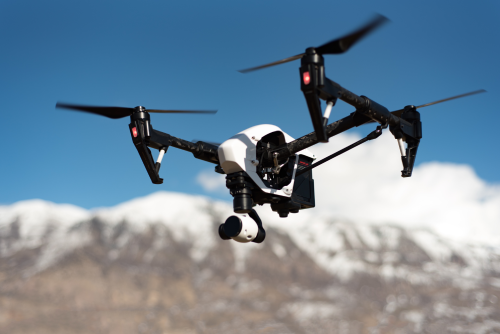
Updating drone firmware safely is one of the simplest ways to avoid strange flight behaviour, connection problems, and battery warnings. But it should never be treated like a casual app update on your phone, because a drone system includes the aircraft, controller, batteries, camera, and sometimes extra accessories that all need to stay in sync.
If you want to know how to update drone firmware safely, the short answer is this: use only the official app or desktop tool, charge everything first, do not rush, and always do a short test flight before using the drone for real work.
Quick Take
- Firmware is the low-level software that runs your drone, remote controller, battery system, camera, and other accessories.
- A safe update starts before you tap “Update”: check the release notes, charge all devices, and make time for testing.
- Never update minutes before a paid shoot, a college demo, a wedding assignment, or a long trip.
- Use only the manufacturer’s official app or desktop software.
- Keep a strong internet connection for the download stage and a stable power source for the install stage.
- If your drone allows easy propeller removal, remove the props before updating indoors.
- Record important settings first, because some updates reset return-to-home altitude, button customisation, camera preferences, or safety settings.
- Update all related parts, not just the drone body. That may include the controller, each intelligent battery, goggles, payloads, or RTK modules.
- After the update, restart everything, verify versions, and do a cautious test flight in a safe legal area.
- In India, do not use unofficial or “unlocked” firmware to bypass limits or region controls. Always verify the latest official compliance guidance before flying commercially or in regulated scenarios.
What a drone firmware update actually changes
Many beginners think firmware only adds new features. In reality, it can affect core behaviour such as:
- Flight stability
- GPS and sensor performance
- Battery management
- Charging logic
- Camera and gimbal behaviour
- Obstacle sensing
- Controller compatibility
- App connectivity
- Airspace warnings or geo-awareness features
That is why a partial update can create odd problems. For example, the drone may update successfully, but one battery may still carry older firmware. Or the aircraft may update, but the controller may not. The result can be error messages, connection failures, or limited functionality.
A safe update is really about keeping the whole system aligned.
Before you update: the safe checklist
| Check | Why it matters | Safe move |
|---|---|---|
| Battery level | Low power during an update can interrupt installation | Fully charge the flight battery, controller, and phone/tablet if possible |
| Internet connection | The update package must download completely | Use strong Wi-Fi or reliable mobile data before starting |
| Official software | Unofficial tools can fail or change settings in risky ways | Use only the manufacturer’s app or desktop utility |
| Cable quality | A poor cable can disconnect during transfer | Use the original or a reliable data cable, not a charge-only cable |
| Workspace | You do not want movement, falls, or accidental motor risk | Update indoors on a flat surface; remove props if practical |
| Time buffer | Rushed updates cause mistakes | Keep at least 30 to 60 minutes free; more if you have extra batteries or accessories |
| Settings backup | Some updates reset preferences | Take screenshots of key settings before you begin |
| Accessories | Mismatched versions create errors | Plan to update the controller, batteries, goggles, and accessories too |
Step-by-step: how to update drone firmware safely
1. Decide whether this is the right time to update
This is the first safety decision, and many pilots ignore it.
Update now if:
- The release notes mention safety fixes, connection fixes, battery fixes, or bug fixes you need
- The app says the update is required
- You need support for a new controller, battery, or accessory
- You have time for a full ground check and test flight
Wait if:
- You have an important job within a few hours
- You are about to travel
- Your internet connection is unreliable
- You do not have time to test after the update
A practical rule: never do a firmware update right before a mission that matters. If you are shooting real estate, surveying land, or covering an event in India, update at least a day earlier when possible.
If you manage multiple drones for a business, club, or college lab, update one unit first, test it, and then update the rest.
2. Prepare a safe workspace
Choose a clean indoor table or workbench.
Do this before powering up:
- Remove propellers if your model allows easy removal
- Keep the drone on a stable, non-metallic surface
- Keep liquids away
- Keep children, pets, and loose objects away from the table
- Make sure the mobile device has enough charge and storage space
Removing props is not always mandatory, but it is a smart habit for many consumer drones. It reduces the chance of trouble if something behaves unexpectedly during setup or restart.
3. Charge everything first
Do not start with one bar left on the controller.
At minimum, charge:
- The flight battery inside the drone
- The remote controller
- The phone or tablet running the app
- Any accessory that may need its own update
If your drone uses intelligent batteries, remember that each battery may contain its own battery management firmware. That means one battery can be updated while another remains outdated until you insert it later.
A simple habit helps: line up all batteries, number them if needed, and update them one by one.
4. Note down your current settings
Firmware updates sometimes change defaults or reset user preferences.
Before you update, take screenshots or notes for:
- Return-to-home altitude
- Maximum distance or altitude settings
- Camera format and frame rate
- White balance or colour profile
- Gimbal settings
- Button customisation
- Safety settings
- Mapping or survey settings if you use third-party mission tools
- Controller stick mode if your brand allows custom layouts
If you fly commercially, this step matters more than people realise. A reset return-to-home altitude can be harmless in one location and risky in another.
Also back up important footage from the memory card. Firmware updates usually do not erase your media, but this is still a good operating habit.
5. Use only the official app or desktop tool
This is one of the most important rules.
Use:
- The manufacturer’s official mobile app, or
- The manufacturer’s official desktop software
Avoid:
- Modified apps
- Unofficial firmware files
- “Unlocked” tools from forums or chat groups
- Random APK files or cracked installers
Unofficial tools may promise more power, fewer restrictions, or hidden features. In real life, they can cause failed updates, unstable behaviour, warranty trouble, and compliance problems.
If your phone is old, slow, or prone to app crashes, a desktop update tool is often the safer choice.
6. Follow the brand’s update order
Different brands handle firmware slightly differently. Some update the aircraft first, some prompt you through the controller first, and some package both inside the app workflow.
The safest rule is simple: let the official app guide the order.
In many setups, you may need to update:
- The aircraft
- The remote controller
- Each intelligent battery
- Goggles or motion controllers if applicable
- Payloads, cameras, or RTK accessories on advanced systems
Do not assume that updating the drone body updates everything automatically.
A common beginner mistake is to update the aircraft with one battery, then pack up and fly later with a second battery that never received the new battery-side firmware.
7. Keep the update process uninterrupted
Once installation starts, avoid touching anything unless the app clearly tells you to.
During the update:
- Do not switch off the drone
- Do not switch off the controller
- Do not unplug the cable
- Do not close the app
- Do not answer calls on the update device if you can avoid it
- Do not let the phone screen sleep if your app is sensitive to background interruptions
- Do not swap batteries mid-process
Some drones will beep, restart, disconnect, reconnect, or show a progress bar that seems stuck. That can be normal.
The final percentage often takes longer because the system may be verifying files or rebooting modules. If the app still shows active progress or the manufacturer describes restart behaviour as normal, wait calmly.
Only restart or retry when the official app clearly reports failure or instructs you to do so.
8. Update every battery and accessory
This step is easy to miss.
After the main aircraft update finishes:
- Power down the drone
- Insert the next battery
- Power up again
- Check whether the app prompts a battery firmware sync or update
- Repeat for all batteries
Do the same for accessories if your system uses them.
This is especially important for:
- Smart batteries
- FPV goggles
- Extra controllers
- Enterprise payloads
- RTK or positioning modules
If one part stays on old firmware, you may see battery warnings, limited features, or linking issues later in the field.
9. Restart and verify the versions
After all updates are done, fully restart the system.
Then check:
- Aircraft firmware version
- Controller firmware version
- Battery status with each battery
- App version
- Any safety database or map package the app still wants to download
Do not assume a green checkmark means everything is ready. Many pilots forget that the app may still need a database sync, login refresh, or region package download before flight.
If the app offers a clear version page, verify each item there instead of guessing.
10. Re-enter settings and calibrate only when needed
Now compare your saved settings with the current setup.
Check that your preferred values are still correct, especially:
- Return-to-home altitude
- Obstacle avoidance settings
- Camera settings
- Units and map preferences
- Button assignments
- Failsafe behaviour
Calibration needs some care.
You may need to recalibrate:
- IMU, if the app requests it
- Gimbal, if the horizon looks off
- Vision system, if the manufacturer recommends it after a major update
But do not blindly recalibrate everything every time. Unnecessary compass calibration is a classic example. If your drone is not asking for it and the compass is healthy, do not calibrate it indoors or near metal objects just because an update happened.
11. Do a short, low-risk test flight
This is the step that turns an update into a safe update.
Do the first post-update flight in an open legal area, not on a real assignment.
A good test sequence is:
- Power on and wait for normal GPS lock and system checks
- Hover at low altitude for 30 to 60 seconds
- Check video feed, gimbal response, and control stick response
- Yaw slowly and watch the horizon
- Fly short forward, backward, and sideways movements
- Watch battery data and warning messages
- Test return-to-home only if conditions are appropriate and you fully understand the area
If anything feels off, land and inspect before continuing.
For professional operators, a five-minute test flight can save a full day of trouble later.
India-specific safety and compliance points
Firmware updates are not just technical. They can also affect how your drone behaves within region-specific limits, app workflows, or airspace warnings.
For readers in India, keep these points in mind:
- Use manufacturer-approved firmware only.
- Do not install modified firmware meant to bypass altitude limits, geo-controls, or region restrictions.
- If your work depends on Indian compliance workflows, permissions, or platform-specific processes, verify the latest official guidance before flying.
- If you operate commercially, test the updated drone in a legal flying environment before using it on a client job.
- If your drone was imported through unofficial channels, confirm that app support, regional settings, and after-sales service still work properly in India.
Rules, app behaviour, and compliance workflows can change. Always verify the latest DGCA and related official guidance instead of depending on old screenshots or social media advice.
Common problems after a firmware update
| Problem | Likely reason | What to do |
|---|---|---|
| Update appears frozen at a high percentage | File verification or reboot is taking time | Wait longer than you think; only retry if the app confirms failure |
| Aircraft and controller do not connect | Firmware mismatch or relink needed | Check both versions and relink through the official app |
| One battery shows an error | That battery did not receive the update | Reinsert that battery and let the system update it separately |
| Gimbal horizon looks tilted | Gimbal settings changed or calibration needed | Recalibrate the gimbal on a level surface |
| App still blocks take-off | App-side data or safety package incomplete | Finish all required downloads and restart the app/system |
If a problem stays unresolved after a normal retry, do not force things in the field. Contact official support or visit an authorised service centre.
Common mistakes to avoid
These are the habits that cause most post-update headaches:
- Updating at the flying site with weak internet
- Starting the update on a half-charged controller
- Forgetting to update extra batteries
- Ignoring release notes
- Using a damaged or charge-only cable
- Letting the phone battery die mid-update
- Closing the app because progress looks slow
- Calibrating sensors unnecessarily indoors
- Flying a client mission immediately after the update
- Using unofficial firmware to unlock features
One more mistake is psychological: assuming “latest” automatically means “ready for work.” A firmware install is only half the job. Verification and test flying are the other half.
FAQ
Do I need to install every firmware update?
Not always immediately. If the update is optional and you have an important flight soon, it can be smarter to wait until you have time to test. But if the update addresses safety, battery, connection, or critical bugs, do not keep delaying it.
Is it safe to update drone firmware using mobile data?
It can be, if your connection is strong and stable. In practice, Wi-Fi is usually more reliable for larger downloads, especially if the app has to fetch multiple packages.
Should I remove the propellers before updating?
If your drone has easily removable propellers, it is a good safety habit to remove them during indoor bench work. If removal is not practical, keep the drone stable, clear the area, and follow the manufacturer’s instructions carefully.
Why does each battery sometimes need its own update?
Many smart batteries have their own battery management system. That means firmware can live inside the battery as well, not just the aircraft. So each battery may need to be inserted and synced separately.
What should I do if the update gets stuck at 99%?
First, do not panic and do not power off too quickly. High percentages often include verification and reboot steps. Wait for the official app to confirm whether the process is still active or has actually failed.
Can I downgrade to an older firmware version?
Sometimes manufacturers allow it, sometimes they do not. Even when possible, downgrading can create compatibility issues. Only use official rollback options if the manufacturer provides them.
Will a firmware update erase my photos or videos?
Usually no, but you should still back up important media before starting. Good operating practice is to assume anything important should already be stored safely elsewhere.
Should I calibrate the compass after every firmware update?
No. Only calibrate when the drone asks for it or when you have a genuine reason. Unnecessary compass calibration, especially indoors or near metal, can create problems instead of solving them.
Can I use unofficial firmware to unlock extra features?
That is a bad idea. It can brick the drone, create unstable flight behaviour, affect warranty support, and create legal or compliance trouble. Stick to official firmware only.
How soon can I fly after updating?
As soon as you have verified versions, checked settings, and completed a short test flight in a safe area. Do not treat the first post-update take-off as a real mission.
Final takeaway
The safest way to update drone firmware is to treat it like maintenance, not like a casual app refresh. Use official tools, charge everything, update every battery and accessory, restore your settings, and do a short test flight before any real work. If you do not have time to test, you do not have time to update.
