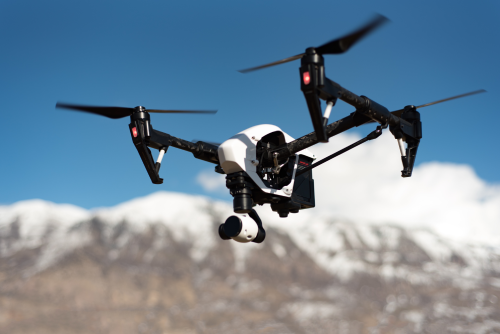
Good color in drone video is usually won before you start editing. If you want to know how to get better colors in drone footage, the biggest gains come from better light, more consistent camera settings, and a simple, controlled color workflow.
For Indian creators, this matters even more because we often shoot in harsh sun, dusty air, mixed city lighting, and high-contrast scenes like white buildings, bright rooftops, green fields, and reflective water. The good news: even a consumer drone can deliver much better colors if you avoid a few common mistakes.
Quick Take
- Shoot in softer light whenever possible, especially early morning or late afternoon.
- Avoid full auto for color-critical shots. Lock white balance and control exposure.
- Use the histogram or exposure warning tools to protect highlights in clouds, buildings, and water.
- If your drone supports a flat or log color profile, use it only if you are comfortable editing it later.
- Keep ISO as low as possible. Noise destroys color quality fast on small drone sensors.
- ND filters help control shutter speed and exposure, but they do not magically improve color by themselves.
- Correct exposure and white balance before applying any LUT or “cinematic” look.
- Be careful with saturation, dehaze, and contrast. Natural color usually looks more professional than overcooked color.
- For most social media and client work, consistent color across shots matters more than making one clip look dramatic.
What “better colors” actually means
Many beginners think better color means more saturation. It does not.
Better colors in drone footage usually means:
- Whites look neutral, not blue or yellow
- Greens look believable, not radioactive
- Sky retains detail instead of turning into a flat patch of cyan
- Skin tones look human, not orange or magenta
- Shots from the same flight match each other
- The image has enough contrast to feel rich, but not so much that shadows and highlights break apart
A good-looking drone clip can be vibrant without looking fake. For real estate, travel, wedding, tourism, and business work, believable color is usually more valuable than extreme color.
Start with light, because editing cannot fix bad light fully
The easiest upgrade: stop shooting only at noon
In much of India, midday light is brutally hard for small drone cameras. Between late morning and early afternoon, especially in summer, you often get:
- harsh shadows
- clipped highlights on terraces, roads, vehicles, and white walls
- washed-out skies
- weak color separation
- heat haze and pollution haze
If you can choose your timing, the best windows are:
- just after sunrise
- late afternoon to sunset
- lightly overcast conditions for softer, cleaner color
Golden-hour light adds warmth and direction naturally. You do less work later.
Use local conditions to your advantage
India-specific shooting conditions can strongly affect color.
- After rain, many locations look cleaner and more saturated because dust settles.
- During winter in some north Indian cities, haze can flatten your blues and reduce contrast.
- Coastal areas can look beautiful, but harsh glare from water can fool exposure.
- Monsoon clouds can create very rich greens, but mixed light can change quickly.
If the air is very hazy, you can still shoot, but keep expectations realistic. Haze reduces color contrast before the image even reaches your camera.
Look for color contrast in the scene
Strong colors do not come only from camera settings. They also come from subject choice.
Good drone scenes often include:
- green fields against warm soil
- blue water next to sandy or rocky edges
- terracotta roofs among trees
- forts, temples, ghats, and old buildings with strong earth tones
- city lights at blue hour, if your drone can handle low light reasonably well
Flat grey days plus a flat grey subject usually produce flat-looking footage, no matter what LUT you apply.
Camera settings that make color easier to grade
Lock white balance instead of trusting auto
White balance tells the camera what should look neutral under the current light. If white balance is on auto, your drone may shift color during the shot as it sees more sky, more greenery, or a reflective surface.
That is why beginners often get clips where the color changes mid-flight.
Use manual white balance whenever you want consistent color.
As a simple starting point:
- Sunny daylight: around 5200K to 5600K
- Cloudy conditions: around 6000K to 6500K
- Warm sunrise or sunset: do not over-correct; let some warmth remain
- Artificial lighting at night: this gets tricky, so test carefully and expect mixed results
You do not need to obsess over the exact Kelvin number. The important thing is consistency.
A practical rule
If the light on the scene is not changing much, keep white balance fixed for the whole shot or even the whole sequence. That makes color matching much easier in editing.
Expose carefully and protect highlights
Small drone sensors usually recover less than larger ground cameras. Once highlights are blown out, especially in clouds, water reflections, white domes, marble, metal roofs, or sunlit roads, they may be gone for good.
Use these tools if your drone offers them:
- histogram
- zebra warnings
- overexposure warning
Aim for an image that is bright enough to stay clean, but not so bright that important highlights clip.
In real-world terms
If you are filming:
- a white building in Jaipur
- a beach scene in Goa
- a bright wedding venue lawn
- a concrete real-estate site in summer sun
then highlight control matters more than squeezing every bit of shadow detail.
Do not underexpose too much either. Very dark footage from a small drone sensor often becomes noisy when lifted in editing, and noisy footage usually produces ugly color.
Keep ISO low whenever possible
High ISO increases noise. Noise does not just make footage grainy. It also makes colors break apart, especially in shadows and skies.
For better colors:
- keep ISO at the base or lowest practical setting
- use more light-friendly timing instead of forcing late-night shots
- use an ND filter in bright conditions to keep exposure controlled without raising shutter oddly
- avoid lifting dark footage aggressively in post
If your drone struggles in low light, the better answer is often better timing, not more ISO.
Choose the right color profile for your skill level
Different drones offer different color modes. Brand names vary, but the basic idea is similar.
| Profile type | Best for | Advantages | Watch-outs |
|---|---|---|---|
| Normal or Standard | Beginners, quick edits, social media | Easy to use, looks good straight out of camera | Less room to fix highlights and color later |
| Flat or Cinelike-style profile | Hobbyists and creators who edit | Softer contrast, more grading flexibility | Needs basic color correction before export |
| Log or HDR-style profile | Advanced users, commercial work, matched camera workflows | Maximum flexibility, especially if recorded in 10-bit | Washed-out look before grading, easy to ruin if exposed badly |
Should you always shoot in log?
No.
If you do not know how to grade log footage properly, normal mode may actually give you better results. Many beginners switch to log because it sounds “professional,” then end up with dull, noisy, or strange-looking colors.
A safer rule is:
- Use Normal if you want speed and minimal editing.
- Use Flat/Cinelike if you want more room but still want a manageable workflow.
- Use Log only if you understand how to convert and grade it properly.
8-bit vs 10-bit: why some footage grades better
Bit depth describes how many color steps the file can store. More steps means smoother gradients and better flexibility in post.
In simple terms:
- 8-bit footage can look good, but it breaks sooner when you push color hard
- 10-bit footage usually holds up better for skies, sunsets, and subtle color shifts
If your drone offers 10-bit recording, it is worth using for serious work. If your drone records only 8-bit, you can still get good colors, but expose more carefully and grade more gently.
Use the highest quality recording mode available
If your drone offers different recording quality options, use the best practical one your memory card and workflow can handle. Stronger recording quality usually preserves color and gradients better.
That matters in scenes like:
- blue skies with thin cloud detail
- fog or haze layers over hills
- sunset gradients
- water with subtle reflections
Heavily compressed footage often falls apart faster during grading.
ND filters help, but they are not color magic
An ND filter is like sunglasses for the camera. It reduces light entering the lens.
Its main benefit for video is that it helps you use a more natural shutter speed in bright daylight. Natural motion blur makes footage feel smoother and more cinematic.
For many creators in India, 25 fps with a shutter around 1/50 second is a practical starting point, especially because it also works well under our 50 Hz power environment when artificial lights are involved.
Important point
ND filters do not directly make color richer. What they do is help you avoid overly fast shutter speeds and overly bright footage, which makes the final image easier to grade well.
What about polarising filters?
A polariser can reduce reflections and sometimes deepen skies or water. But on drones, it can be risky because the angle to the sun changes quickly as you turn or tilt. That can create uneven skies or inconsistent reflections across a shot.
Use a polariser carefully, especially for:
- water
- glass buildings
- wet roads
- bright foliage after rain
Also avoid very cheap filters. Poor filters can add a color cast of their own.
A simple in-flight workflow for better colors
Follow this routine and you will prevent most color problems before they start.
1. Clean the lens and filter
A dusty lens can lower contrast and wash out color, which is common in dry and dusty areas.
2. Check the light first
Ask yourself:
- Is the light soft or harsh?
- Is there haze?
- Will the sun angle help the subject?
- Is the scene worth filming right now, or should I wait 30 minutes?
3. Choose your frame rate and profile
Set these before takeoff. Do not keep changing them mid-flight unless you have a reason.
4. Set white balance manually
Lock it so color does not drift during the shot.
5. Keep ISO low and set exposure carefully
Use shutter speed and, if needed, an ND filter to stay in a good exposure range.
6. Check the histogram
Make sure highlights are not clipping badly.
7. Record a short test clip
Review it once before starting the real sequence. This saves a lot of frustration later.
8. Keep settings consistent across related shots
If you are shooting a property, a travel sequence, or a tourism reel, matching shots matters. Changing white balance or profile from one shot to the next makes editing harder.
Editing is where good colors are finished, not invented
A lot of creators expect a LUT to rescue weak footage. That almost never works. Editing should refine what you captured, not completely rebuild it.
Step 1: Correct exposure and white balance first
Before you touch a LUT or a creative look:
- set proper contrast
- fix white balance
- recover highlights if possible
- lift shadows only as much as needed
- make sure blacks are not crushed
This first stage is called color correction.
If your whites still look blue or yellow at this stage, everything you add later will be harder to control.
Step 2: Convert log footage properly
A LUT, short for lookup table, is a preset that transforms color and contrast.
If you shot in log, the first LUT should usually be a technical conversion that brings the footage into a standard viewing space like Rec.709, which is the normal color space for standard video.
Only after that should you apply a creative look.
Good practice
- correction first
- technical conversion second, if needed
- creative look third
- fine adjustments last
Bad practice
- stack multiple LUTs immediately
- add saturation before fixing white balance
- use one LUT on every clip without checking exposure
Step 3: Add saturation carefully
Saturation is easy to overdo in drone footage because skies, greenery, and roofs respond very quickly.
A more professional approach is:
- add a little global saturation
- use vibrance or selective color tools if available
- reduce problem colors instead of boosting everything
Common example
If farmland looks too electric green, do not keep raising overall saturation. Instead:
- pull green saturation down slightly
- shift the hue a little if needed
- add contrast carefully
- keep yellow-green areas believable
This is often the difference between amateur-looking landscape footage and polished travel footage.
Step 4: Use selective color tools for problem areas
Most editors give you HSL controls, which means hue, saturation, and luminance.
These are very useful for drone footage because the main trouble spots are usually specific colors:
- sky blues
- green foliage
- yellow grass
- orange rooftops
- red temple walls or sandstone
- skin tones if people are visible
Scene-specific examples
Cities and real estate
Urban scenes often have white walls, concrete, tinted glass, and mixed shadows.
- protect whites from going blue
- avoid too much sharpening
- keep greens from lawns under control
- warm the shot slightly only if it suits the time of day
Green landscapes
After monsoon or in agricultural regions, greens can quickly look fake.
- reduce green saturation slightly
- watch yellow-green transitions
- do not push dehaze too hard
Water and beaches
Water can look beautiful, but easy to over-grade.
- keep cyan under control
- watch highlight reflections
- avoid making the sea look unnaturally turquoise unless the location truly looked that way
Heritage structures and earth tones
Forts, temples, ghats, sandstone, and old town textures often look best with restrained grading.
- preserve texture
- do not clip reds and oranges
- let warm tones feel rich but natural
Step 5: Match shots before you export
A sequence with medium-good matching usually looks better than one amazing shot surrounded by inconsistent clips.
When matching shots, compare:
- exposure
- white balance
- contrast
- saturation
- sky tone
- foliage tone
This is important for:
- wedding highlights
- travel edits
- resort videos
- real-estate walkthroughs
- tourism promos
- YouTube vlogs
Step 6: Be careful with sharpening and noise reduction
Heavy sharpening creates ugly edges and can make colors look brittle. Too much noise reduction can smear textures and make footage look plasticky.
If your drone already applies strong in-camera processing, keep post-processing gentle.
Step 7: Export for the screen people will actually watch
A lot of your audience in India will watch on phones. That means:
- strong contrast can look harsher than expected
- oversaturated skies can clip easily
- subtle color differences may disappear after platform compression
If you do not have a reliable HDR workflow, standard video delivery is usually the safer path. It is easier to keep colors consistent across phones, laptops, and social platforms.
A practical editing formula for beginners
If you want a simple workflow that works on most drone footage, use this order:
- Fix exposure
- Fix white balance
- Add contrast gently
- Recover highlights if possible
- Add a small amount of saturation
- Tame greens and blues if needed
- Apply a creative look lightly, if at all
- Match nearby shots
- Export and review on both a larger screen and a phone
That alone will improve your results a lot.
Safety, legal, and compliance matters still apply
Better colors are never worth an unsafe or illegal flight.
Before filming in India, verify the latest official DGCA guidance, Digital Sky requirements, airspace restrictions, and any local permissions that may apply. Rules, permissions, and operational requirements can change, so confirm the current position before you fly.
Also keep these practical points in mind:
- Do not fly over crowds or sensitive areas unless you are properly authorised.
- Respect privacy when filming homes, private events, farms, and residential areas.
- Be extra cautious near airports, military areas, government-sensitive locations, and any restricted zone.
- Strong wind, dust, low visibility, and fast-changing monsoon weather can reduce both safety and image quality.
- Hot summer conditions can affect battery performance and your timing window.
From a color standpoint, unsafe conditions also hurt your footage. High wind causes micro-jerks, dust reduces contrast, and poor visibility flattens color.
Common mistakes that make drone colors look bad
1. Shooting everything in harsh midday light
You can still shoot at noon if you must, but do not expect the easiest color grade.
2. Leaving white balance on auto
This causes color shifts during the clip.
3. Using log footage without understanding how to grade it
Log is helpful, not magical.
4. Underexposing too much
Trying to “save highlights” by going too dark often creates noisy, weak color.
5. Pushing saturation first
If white balance and contrast are wrong, saturation only makes the problem louder.
6. Overusing dehaze
A little dehaze can help in hazy conditions. Too much can create crunchy edges, ugly blues, and unnatural contrast.
7. Applying a strong LUT to every clip
LUTs should be adjusted, not blindly trusted.
8. Ignoring lens cleanliness
A hazy lens makes footage look softer and flatter than it should.
9. Mixing profiles and settings in one project
Different color modes, white balances, and exposure styles make matching difficult.
10. Buying poor-quality filters
Low-quality glass can shift colors and reduce image quality.
FAQ
Is shooting in log always better for color?
No. Log gives you more flexibility only if you expose it well and grade it properly. For many beginners, a normal or flat profile is easier and safer.
What white balance should I use outdoors?
Use manual white balance and treat daylight values as a starting point. The key is consistency, not chasing a “perfect” number on every shot.
Do ND filters make colors more vibrant?
Not directly. They mainly help control shutter speed and exposure in bright light, which can make footage easier to grade well.
Why does my footage look washed out after recording?
You were probably using a flat or log profile. That is normal. It needs color correction and, in many cases, a proper conversion before it looks normal.
Why do my colors change during a single shot?
The most common reason is auto white balance or auto exposure reacting to different parts of the scene.
Can I recover a blown-out sky in editing?
Sometimes a little, but not always. If highlights are badly clipped, the detail may be gone. It is better to protect highlights during shooting.
Should I shoot 25 fps or 30 fps in India?
Both can work, but 25 fps is a practical choice for many creators here, especially when shooting around artificial lighting under a 50 Hz power environment. What matters most is keeping the workflow consistent.
My greens always look fake. What should I do?
Lower green saturation slightly, avoid overusing dehaze, and make smaller color changes overall. Drone footage often needs less green enhancement than beginners think.
Is HDR or HLG worth using for social media?
Only if you understand the full workflow and know how your platform and display handle it. For many users, standard delivery is the safer and more consistent choice.
What is the fastest way to improve colors on my next flight?
Shoot earlier or later in the day, lock white balance, keep ISO low, protect highlights, and use a lighter grade than you think you need.
Final takeaway
If you want better colors in drone footage, do not start with LUTs. Start with light, then lock your white balance, expose carefully, and keep your edit restrained. On your very next flight, change just three habits, shoot in better light, stop using auto white balance, and grade more gently, and your footage will already look noticeably more professional.
