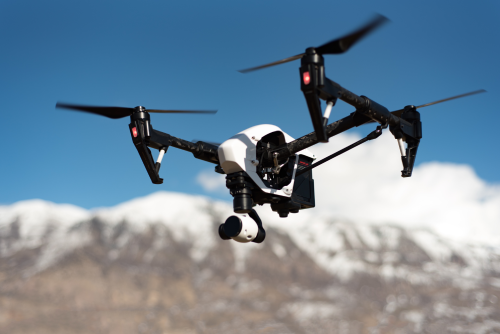
If you want to learn how to edit drone photos for a professional look, start with one simple idea: the best edits make aerial images cleaner, clearer, and more believable, not overly dramatic. A good drone photo edit should preserve detail in the sky and ground, fix the horizon, improve colour naturally, and guide the viewer’s eye to the subject.
Quick Take
- Shoot in RAW whenever your drone allows it. RAW files hold more image data than JPEG and give you much more control while editing.
- Fix the basics first: horizon, crop, exposure, white balance, highlights, and shadows.
- Use colour carefully. Professional edits usually look natural, not neon.
- Small drone sensors often struggle with harsh midday light, so avoid pushing shadows and clarity too far.
- Local adjustments help a lot in drone photography. Brighten the subject, control the sky, and reduce distractions without affecting the whole image.
- Sharpen lightly and reduce noise carefully. Too much of either creates a fake, crunchy look.
- Export differently for Instagram, websites, client delivery, and print.
- Editing cannot fix unsafe flying, legal violations, or privacy issues. Always fly and use images responsibly, and verify the latest DGCA and Digital Sky rules before any commercial or sensitive use in India.
What makes a drone photo look professional?
A professional-looking drone image usually has five qualities:
Good balance
The image is not too bright or too dark. The sky keeps detail, and the land below does not look muddy.
Straight horizon and clean composition
Even a strong aerial image looks amateur if the horizon is tilted or the frame feels messy.
Natural colour
Grass should not glow unnaturally green. Water should not become electric blue unless that really matches the scene.
Controlled detail
The photo should look sharp where it matters, but not harsh. Over-sharpening is one of the easiest ways to ruin a drone image.
Clear subject
A professional photo leads the eye somewhere: a road through fields, a coastline, a temple complex, a villa, a boat, a mountain ridge, or a pattern in farmland.
The goal is not to “save” a bad image with editing. The goal is to improve a decent image in a way that still feels real.
Before you edit: shoot with editing in mind
Editing starts before you open any software.
Shoot RAW, not just JPEG
RAW files contain more information from the camera sensor. That extra data helps you:
- recover highlight detail in bright skies
- lift shadows without destroying the image
- adjust white balance more accurately
- make cleaner colour corrections
JPEG can still work for casual use, especially on entry-level drones, but RAW is far better for serious edits.
Avoid the harshest light
In India, midday sunlight can be brutally strong for small drone sensors, especially in summer. This often creates:
- blown-out skies
- hard shadows
- flat colours
- haze
Golden hour, shortly after sunrise or before sunset, usually gives you better results and easier edits.
Clean the lens
A tiny smudge on a drone camera lens can reduce contrast and make bright scenes look soft. Wipe the lens gently before take-off.
Expose carefully
If your drone allows manual control, protect the bright parts of the image first. It is usually easier to lift shadows than to recover a completely blown-out sky.
Use bracketing for difficult scenes
Exposure bracketing means taking multiple images at different brightness levels. This helps in high-contrast scenes such as:
- bright sky over dark buildings
- sunrise over mountains
- beach scenes with strong reflections
- real estate shots with both exterior and shadow detail
Keep the horizon level
You can fix a small tilt later, but large corrections force you to crop more heavily. Try to get it close in-camera.
Best software options for editing drone photos
You do not need the most expensive software to get professional results. You need a consistent workflow.
Popular options
- Adobe Lightroom: excellent for RAW editing, batch work, and quick professional results
- Adobe Photoshop: useful for deeper retouching, object removal, and composites
- Capture One: strong colour control and tethered workflows, more common among advanced users
- Darktable: a capable free option for RAW editing
- Snapseed or Lightroom Mobile: useful for quick edits on a phone or tablet
What beginners should choose
If you are just starting, pick one editor that handles RAW files well and learn it properly. For most drone photographers, Lightroom-style tools are enough for 80 to 90 percent of the job.
A step-by-step drone photo editing workflow
This workflow works well for landscapes, travel shots, resorts, farms, city views, and most commercial drone stills.
Step 1: Import, organise, and cull
Before editing, sort your files.
Create simple folders
A clear folder structure saves time later, especially if you shoot often.
Example:
- Year
- Month
- Location
- Project name
Reject weak frames quickly
Delete or mark photos that have:
- motion blur
- poor composition
- blocked subject
- heavy haze beyond recovery
- propeller shadows or intrusions
- badly blown highlights
Do not edit ten similar frames. Choose the strongest one or two.
Step 2: Apply lens correction and fix the horizon
Drone cameras are usually wide-angle, which can introduce distortion.
Start with technical corrections
Apply, if available:
- lens profile correction
- chromatic aberration correction
- horizon leveling
Chromatic aberration means colour fringing, usually purple or green edges around high-contrast objects like rooftops, towers, or tree branches.
Crop with intent
Use cropping to strengthen the composition, not just to remove mistakes.
Ask:
- Is the subject clear?
- Is there too much empty sky?
- Is the frame more powerful in 16:9, 4:5, or square?
- Would a tighter crop remove distractions?
For social media, 4:5 often uses screen space better. For cinematic landscapes, 16:9 can work nicely.
Step 3: Set white balance and overall exposure
Now correct the image globally before touching details.
White balance
White balance controls whether the image looks too cool (blue) or too warm (yellow-orange).
Aerial photos often look too cool because of haze, water, or open sky. Warm the image slightly if needed, but keep it believable.
Exposure
Adjust overall brightness until the scene feels balanced. Then fine-tune:
- Highlights: reduce bright areas like sky, clouds, rooftops, water reflections
- Shadows: open dark areas carefully
- Whites: set the brightest clean points
- Blacks: add depth without crushing detail
A histogram can help here. It is a graph showing how brightness is distributed in the image. You do not need to obsess over it, but it helps avoid clipping, where bright or dark detail is lost completely.
Step 4: Recover sky and shadow detail without making the image flat
One common beginner mistake is pushing both highlights and shadows so hard that the image loses contrast and drama.
Instead:
- Pull back highlights enough to reveal cloud or sky detail.
- Lift shadows only as much as needed.
- Add a little contrast back if the image becomes too flat.
- Use local adjustments instead of extreme global adjustments.
Drone images often need balance, not rescue.
Step 5: Improve colour the professional way
Colour is where many drone edits go wrong.
Use vibrance before saturation
- Vibrance increases muted colours more gently
- Saturation increases all colours equally, often too aggressively
For most aerial photos, vibrance is safer.
Use HSL for better control
HSL stands for Hue, Saturation, and Luminance.
It lets you control specific colours separately.
Examples:
- reduce green saturation slightly if fields look radioactive
- darken blue luminance to add depth to the sky
- shift yellow-green grass toward a more natural green
- soften orange buildings if sunset light gets too intense
This is especially useful in India, where bright roofs, painted buildings, temple colours, market areas, and farmland can become too intense after a basic edit.
Keep skin tones natural
If your drone shot includes people, especially in wedding, travel, or event coverage, avoid edits that make skin look orange, pink, or grey.
Step 6: Add depth with clarity, texture, and dehaze
These sliders can improve drone images, but they are easy to overuse.
Clarity
Clarity increases midtone contrast, which makes details stand out. Too much can make fields, roads, and buildings look harsh.
Texture
Texture enhances fine detail more gently than clarity. It often works better for architecture and landscape surfaces.
Dehaze
Dehaze is useful for aerial images because haze is common at altitude, especially over cities, coastlines, and humid regions.
Use it carefully:
- too little: image stays washed out
- too much: sky becomes unnatural, shadows become muddy, colours become heavy
A small amount is often enough.
Step 7: Use local adjustments to guide the eye
This is where your edit starts looking more professional.
Instead of changing the whole image equally, edit different parts separately.
Useful local tools
- Graduated filter: good for skies or ground
- Radial filter: good for drawing attention to a building, boat, road bend, or subject
- Brush tool: good for precise corrections on selected areas
- AI masking, where available: useful for sky, buildings, vegetation, or subject separation
Practical examples
Landscape shot
- darken the sky slightly
- lift the foreground a little
- add texture to the mountain ridge
- brighten the river or road leading through the frame
Real estate shot
- brighten the property slightly more than the surroundings
- reduce distractions in nearby areas
- correct colour cast on walls or roofs
- keep lawns and pools attractive, but believable
Urban aerial
- reduce haze in distant buildings
- control highlight glare on concrete or glass
- emphasize leading lines from roads, flyovers, or waterfront edges
Local editing is often the difference between a basic edit and a polished one.
Step 8: Remove distractions, but stay honest
Removing small distractions can clean up the image.
Possible fixes:
- dust spots
- small litter patches in non-documentary work
- random bright objects at the frame edge
- minor sensor blemishes
But be careful with heavy manipulation.
For journalism, documentation, inspections, and some client work, removing or changing important elements can become misleading. Even in real estate, the aim is to present the property well, not falsely.
Step 9: Reduce noise and sharpen properly
Small drone sensors can create visible noise, especially in low light, shadows, or hazy scenes.
Noise reduction
Apply enough to smooth the image without making it waxy or blurry.
Watch out for:
- smeared trees
- plastic-looking rooftops
- mushy texture in grass or roads
Sharpening
Good sharpening adds crispness. Too much creates halos and gritty edges.
A better approach:
- sharpen moderately
- mask the sharpening so it affects edges more than smooth areas like sky or water
- zoom in to check buildings, trees, and road edges
For web and social media, export sharpening can help after resizing.
Step 10: Finish with colour consistency and style
At this stage, ask yourself: does the image feel coherent?
A professional edit usually has:
- one clear mood
- consistent whites and neutrals
- no random colour shifts
- controlled contrast
- believable brightness
You can develop a signature style over time, but build it on good fundamentals. Strong style should not hide weak editing.
Step 11: Export for the right use
Many good edits get spoiled at export.
For social media
- export in sRGB colour space
- resize for the platform if needed
- avoid extreme compression
- check if the crop works well on a phone screen
For websites
- keep file size reasonable
- retain enough detail without making the file too heavy
- sharpen lightly for screen viewing
For clients
Ask how the images will be used:
- Instagram or reels cover image
- brochure
- website banner
- print ad
- large display
- property listing
Different uses need different dimensions and file types.
Editing choices by photo type
| Photo type | Main editing priority | What to avoid |
|---|---|---|
| Landscape | Recover sky detail, improve depth, guide the eye | Overdone dehaze and heavy saturation |
| Coastal or lake scene | Control reflections, manage blues and haze | Unreal cyan water and clipped highlights |
| Real estate | Correct lines, brighten property, natural colour | Fake grass, misleading object removal |
| City aerial | Reduce haze, control contrast, sharpen key structures | Over-sharpened buildings and dirty shadows |
| Farmland or rural patterns | Improve separation of tones and textures | Over-editing greens and browns |
| Sunrise or sunset | Preserve warmth and dynamic range | Orange overload and crushed silhouettes |
Three practical editing examples
Example 1: Sunrise landscape over hills
You shot a RAW image over a hill station at sunrise. The sky looks bright, but the valleys are dark.
Edit approach:
- Level the horizon.
- Reduce highlights to recover cloud texture.
- Lift shadows gently in the valleys.
- Warm white balance slightly.
- Add a little dehaze for depth.
- Use a graduated filter on the sky.
- Add texture only to the ridgelines.
- Sharpen moderately.
Result: a dramatic but believable image.
Example 2: Real estate villa with pool
The house looks slightly dull, and the pool is reflecting harsh light.
Edit approach:
- Correct perspective and crop.
- Brighten the property slightly more than the surroundings.
- Reduce highlight glare on the pool.
- Adjust white balance to make walls look neutral.
- Tame over-saturated grass.
- Use local masks to clean up key areas.
- Remove minor distracting spots only if acceptable for the project.
Result: polished, clean, trustworthy.
Example 3: Urban riverfront aerial in hazy weather
You captured a strong composition, but distant buildings look washed out.
Edit approach:
- Correct overall exposure.
- Add dehaze carefully.
- Darken the sky just a little.
- Increase contrast in midtones.
- Use local adjustments to improve definition in key buildings.
- Reduce noise in the shadows.
- Keep colours restrained.
Result: cleaner, more dimensional cityscape without looking fake.
Common mistakes when editing drone photos
Over-saturating everything
This is the biggest beginner error. Bright colours may look impressive for a second, but they quickly feel cheap.
Overusing HDR-style edits
HDR means High Dynamic Range, often created by combining exposures or aggressively balancing bright and dark areas. If done badly, it makes images look flat and unnatural.
Pushing dehaze too far
This can produce dark, dirty skies and harsh shadows.
Ignoring the horizon
A tilted horizon instantly weakens your image.
Editing only the sky
Many beginners focus on dramatic skies and forget the actual subject below.
Making every image equally contrasty
Not every scene needs punchy contrast. Soft morning mist and flat monsoon light can be beautiful when edited gently.
Over-sharpening
Buildings, roads, and tree lines can become crunchy and artificial very quickly.
Not checking the image at full size
A photo may look fine zoomed out, but up close you may notice halos, noise, banding in the sky, or ugly masking.
A note on safety, legality, and responsible use in India
Editing is only one part of professional drone work.
Editing does not fix a bad flight decision
If a photo was captured in a restricted or sensitive area, or in a way that invaded privacy, a nice edit does not make it acceptable.
Verify current rules before flying or selling aerial work
Indian drone rules can change, and operational limits may depend on the drone category, airspace, location, and purpose of use. Before commercial shoots or flights near sensitive locations, always verify the latest official guidance from DGCA and Digital Sky.
Respect privacy and client trust
Be especially careful when editing:
- residential properties
- private events
- schools
- industrial sites
- government or infrastructure areas
Do not exaggerate property size, remove significant defects in a misleading way, or publish identifiable private spaces without proper permission.
FAQ
Do I really need RAW for drone photo editing?
If your drone supports RAW, yes. RAW gives you much more room to recover highlights, lift shadows, and adjust colour cleanly. JPEG is fine for quick casual posts, but RAW is better for a professional finish.
Which is better for drone photos: Lightroom or Photoshop?
Lightroom is usually the better starting point because it handles RAW editing, batch processing, and colour adjustments efficiently. Photoshop is more useful for advanced retouching and complex edits.
How much saturation is too much?
If grass looks neon, water looks fluorescent, or buildings look unnaturally vivid, you have gone too far. A good test is to step away for a minute and return with fresh eyes. If the colours shout at you, reduce them.
Should I use HDR for drone photography?
Only when needed, and gently. HDR can help in high-contrast scenes, but aggressive HDR often makes drone photos look fake. Try to preserve natural contrast.
Why do my edited drone photos look soft?
Common reasons include haze, too much noise reduction, missed focus, lens smudges, or over-lifting shadows. Sharpening alone will not fix a weak file. Start with better capture and use moderate sharpening.
What aspect ratio works best for Instagram?
A 4:5 crop usually fills more vertical screen space and performs well for feed posts. But not every drone image suits that crop. If the scene depends on width, a landscape crop may be stronger.
Can I edit drone photos on a phone?
Yes, especially for simple colour, exposure, and crop adjustments. But for serious RAW editing, local adjustments, and client delivery, a computer gives you better control.
How do I make hazy aerial shots look better?
Use dehaze lightly, adjust contrast, darken the sky a bit if needed, and improve local detail in the subject area. Do not try to force a crystal-clear look from a badly hazy file.
Is it okay to remove people or objects from drone photos?
For personal art, sometimes yes. For journalism, documentation, inspections, and many commercial uses, be careful. Removing meaningful elements can become misleading. Match your editing to the purpose of the image.
What is the fastest way to improve my drone edits?
Use a repeatable workflow: level horizon, correct exposure, set white balance, control highlights, use local adjustments, and export properly. Consistency improves quality faster than chasing dramatic presets.
The takeaway
For a professional look, do not try to make every drone photo more dramatic. Make it more balanced, more focused, and more believable. On your next flight, shoot in RAW, pick just five strong frames, and edit them with one disciplined workflow instead of ten random effects.
