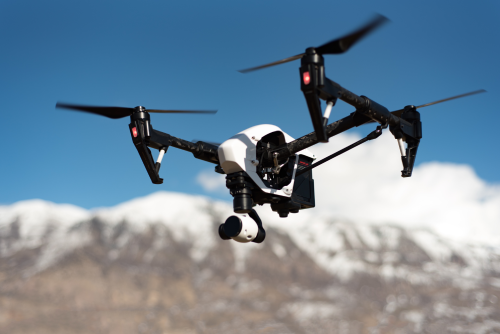
Knowing how to use intelligent flight modes on a drone can turn shaky manual flying into smoother, more repeatable shots. These semi-automated features can help with tracking, orbiting, route flying, and short cinematic moves, but they are not magic and they are not a substitute for pilot judgement. For Indian drone users especially, the smart approach is to learn each mode in a safe open area and verify the latest legal airspace status before every flight.
Quick Take
- Intelligent flight modes are semi-automated features like Follow Me, Orbit, Waypoints, Spotlight, and QuickShots.
- Different brands use different names, but the basic ideas are similar.
- Start with the easiest and safest options first: Cine or Tripod mode, Spotlight, and simple Orbit moves.
- Always check GPS or satellite lock, battery level, home point, and Return to Home altitude before using any automated mode.
- Obstacle sensing helps, but it does not see everything. Thin wires, branches, glass, water, and low light can fool it.
- Keep the drone in visual line of sight and stay ready to pause, cancel, or take over manually.
- In India, intelligent modes do not override DGCA or airspace rules. Verify the latest official guidance and Digital Sky status before flying.
What intelligent flight modes actually do
Intelligent flight modes are features that let the drone assist with movement, camera framing, or route planning.
Instead of manually controlling every stick movement, you tell the drone what kind of move you want:
- track a person
- circle a building
- fly a repeat route
- keep the camera locked on a subject
- perform a short cinematic move automatically
Most of these modes depend on a mix of:
- GNSS or satellite positioning, often called GPS lock in apps
- onboard vision sensors
- obstacle detection or avoidance
- subject recognition
- app-based route planning
That is why they work best in good light, open spaces, and strong satellite conditions.
Common intelligent flight modes at a glance
| Mode | What it does | Best use | Biggest risk |
|---|---|---|---|
| Follow Me / ActiveTrack | Tracks a subject automatically | Solo creator shots, walking, cycling in open areas | Losing the subject or hitting side obstacles |
| Point of Interest / Orbit | Circles around a subject | Buildings, statues, isolated trees, vehicles in open ground | Trees, poles, changing radius, wind drift |
| Waypoints | Flies a planned route | Inspections, site progress, repeatable content, farmland records | Wrong altitude, map assumptions, signal issues |
| Spotlight / Focus mode | Keeps camera aimed at subject while you fly manually | Safer cinematic tracking, real estate, moving subjects | Pilot still responsible for flight path |
| QuickShots | Auto-performs short pre-set camera moves | Social media clips, simple reveals | Obstacles behind, above, or around the drone |
| Cine / Tripod mode | Slows controls for smooth manual flying | Beginner practice, precise shots | False sense of safety in tight spaces |
| Return to Home | Auto-returns to home point | Signal loss, low battery, emergency recovery | Wrong home point or unsafe RTH altitude |
Not every drone has all of these modes. Even within the same brand, feature names and behaviour can vary.
Before you use any intelligent flight mode
This part matters more than the mode itself. A good setup prevents most problems.
1. Pick the right location
Choose a wide, open area for practice.
Good places include:
- open fields
- empty grounds
- large clear plots
- quiet spaces away from crowds, roads, trees, poles, and overhead wires
Avoid learning intelligent modes:
- in narrow lanes
- between buildings
- near crowds
- over traffic
- near water unless you are already confident
- in windy hilltops or coastal gusts
2. Verify legal and airspace status
Before launch, verify the latest official rules that apply to your drone and operation in India.
At minimum, check:
- whether the location is allowed for drone flying
- whether your operation needs any specific approval
- whether local restrictions apply
- whether your drone and use case fall under the latest DGCA and Digital Sky requirements
Do not assume that because the drone app allows takeoff, the flight is legally permitted.
3. Inspect the drone
Before using any automated feature, do a simple physical check:
- propellers are not chipped, bent, or loose
- battery is properly seated
- camera gimbal moves freely
- motors spin normally
- controller sticks and buttons feel normal
- memory card is inserted if you plan to record
4. Wait for a reliable home point
The home point is where the drone will try to return if Return to Home is triggered.
Do not rush takeoff.
Wait until the app clearly confirms:
- good satellite lock
- home point updated
- no major compass or sensor warning
5. Set a sensible Return to Home altitude
This is one of the most important safety settings.
Your Return to Home altitude should be high enough to clear nearby trees, poles, buildings, and other obstacles. If it is too low, the drone may return into danger. If it is unnecessarily high, it may waste battery.
Check the area, think about the tallest obstacle nearby, and set conservatively.
6. Understand sensor blind spots
Many beginners trust obstacle avoidance too much.
Vision and obstacle sensors can struggle with:
- thin wires
- power lines
- bare branches
- reflective surfaces
- water
- glass
- low light
- fog or haze
- very fast sideways motion
Even if your drone advertises omnidirectional sensing, never assume it sees everything.
7. Learn the pause or brake command
Most drones have a pause, brake, or emergency stop-style command for auto flight actions.
Know exactly:
- which button stops the current intelligent mode
- how to switch back to normal manual flight
- how to cancel Return to Home
Practice that before trying your first smart shot.
8. Start with plenty of battery in reserve
Automated moves can use more battery than expected because the drone may climb, circle, or fight wind.
Do not begin a new intelligent mode when the battery is already low or when you are far from your takeoff point.
How to use the most useful intelligent flight modes
Follow Me or ActiveTrack
This mode tracks a person, vehicle, or selected subject automatically. It is popular with solo creators, cyclists, runners, and travel vloggers.
Best for
- walking shots
- slow cycling in open ground
- keeping a person centered in frame
- simple creator content when no second operator is available
How to use it safely
- Take off and hover manually first.
- Make sure you have strong satellite lock and a clear open area.
- Position the subject so it is clearly visible on the screen.
- In the app, select the subject using the tracking box or tap-to-track option.
- If the app offers tracking styles, choose the simplest one first.
- Start with the subject moving slowly, such as walking, not running.
- Keep the drone higher and farther from obstacles than you think you need.
- Watch both the live view and the real drone, not just the screen.
- If the drone hesitates, drifts, or loses the subject, pause and take over manually.
Practical tips
- Start with front or rear tracking before trying side tracking.
- High-contrast clothing is easier for many systems to track.
- Avoid tracking someone who repeatedly disappears behind trees, walls, or vehicles.
- Do not use this mode around crowds.
- Avoid using it to follow vehicles on public roads.
When it goes wrong
Follow Me can fail if:
- the subject becomes too small in frame
- lighting is poor
- the subject moves under trees
- another person enters the frame
- the drone has to fly sideways near obstacles
For many beginners, Spotlight mode is actually safer than Follow Me.
Point of Interest or Orbit
This mode circles around a selected subject while keeping it in frame. It is one of the best intelligent flight modes for cinematic shots.
Best for
- temples, monuments, and isolated structures in open areas
- real estate exterior shots
- parked vehicles in a safe empty lot
- landscape features like a lone tree or rock formation
How to use it safely
- Scout the subject manually first.
- Check for branches, wires, lamp posts, flags, and uneven terrain around the orbit path.
- Start from a wider radius than you want.
- Set your altitude safely above the tallest nearby obstacle.
- Select the subject and choose orbit direction if the app allows it.
- Start at a slow orbit speed.
- Adjust gimbal angle gradually for the framing you want.
- Be ready to stop if wind pushes the drone inward or outward.
Practical tips
- A wider, slower orbit usually looks better than a tight, fast one.
- If the subject is tall, such as a building, be careful with your chosen altitude as the drone may not clear nearby roof elements or poles.
- Use Orbit in open plots first, not tight city spaces.
- If your drone allows manual input during orbit, use very small corrections only.
Good beginner workflow
A simple and reliable way to learn Orbit is:
- first fly a manual circle around the subject
- then repeat the move using the automated mode
- compare the framing and smoothness later
That gives you a safer feel for space and radius.
Waypoints
Waypoint mode lets you pre-plan a route and have the drone fly it automatically. This is extremely useful for repeatable jobs.
Best for
- construction progress documentation
- farm or field record shots
- repeat property videos
- inspection routes
- content that needs the same path every week or month
How to use it safely
- Visit the site and manually fly the route once if possible.
- Identify the tallest obstacle along the path, not just near takeoff.
- Build a simple route with only a few waypoints for your first attempt.
- Use conservative altitude values.
- Check whether the app sets speed, heading, and camera direction separately.
- Run a short test route before flying the full mission.
- Stay ready to pause or abort if something looks wrong.
- Review the recorded path before relying on it for paid work.
Practical tips
- Do not trust the map alone. Trees, cranes, temporary poles, and cables may not appear.
- Terrain changes matter. A route that is safe at one end may be too low at another.
- Wind can change how neat the move looks, even if the route is the same.
- For repeat jobs, keep notes on season, light direction, and safe takeoff points.
Best use case in India
Waypoint mode is especially useful for:
- small real estate firms documenting plots
- students filming campus projects where drone use is permitted
- farm monitoring over open private land where flying is legally allowed
- industrial documentation with proper site approval
Spotlight or Focus mode
Spotlight keeps the camera locked on a subject while you still control the drone’s path manually. Think of it as a hybrid mode: the camera helps you, but you still fly.
Why this is great for beginners
Spotlight is often safer than full tracking because:
- you choose the path
- you control altitude and spacing
- the camera helps keep the subject framed
- you can avoid obstacles more deliberately
Best for
- real estate walkarounds
- slow vehicle shots in safe private spaces
- statue and building reveals
- creator shots where you want the subject framed but do not trust full auto tracking
How to use it
- Hover at a safe distance from the subject.
- Select the subject in the app.
- Enable Spotlight or the equivalent focus mode.
- Fly gentle manual paths such as: – straight sideways moves – diagonal reveal shots – slow backward climbs – curved fly-bys
- Let the camera stay locked while you concentrate on safe positioning.
- Exit the mode if the subject is lost or framing becomes unstable.
Practical tip
If you only learn one “smart” mode in your first few weeks, make it Spotlight. It teaches framing without taking too much control away from you.
QuickShots
QuickShots are short automatic camera moves. Different drones may offer different names, but common examples include Dronie, Rocket, Circle, Helix, and Boomerang.
Best for
- short social media clips
- travel intros
- quick establishing shots
- simple creator content
How to use it safely
- Choose a very open area.
- Select your subject carefully.
- Check behind, above, and around the drone before starting.
- Pick the simplest move first, such as a straight pullback or upward reveal.
- Keep the subject isolated from trees, wires, and poles.
- Start recording and monitor the move closely.
- Cancel immediately if the path looks tighter than expected.
Practical tips
- QuickShots are easiest when the subject stands still.
- Do not use them in cramped backyards or between buildings.
- Some moves travel farther than beginners expect.
- A clean Dronie or Rocket usually works better than a fancy Boomerang in a tight area.
Cine or Tripod mode
This is not always marketed as an “intelligent” flight mode, but it is one of the most useful smart-assisted modes for beginners because it reduces speed and softens control response.
Best for
- learning smoother stick control
- indoor-style pacing in large open indoor-authorised spaces, if your drone supports it safely
- precise framing
- simple cinematic movement without full automation
How to use it well
- Use it for your takeoff practice and first shot attempts.
- Combine it with Spotlight for smooth beginner-friendly tracking.
- Do not mistake slower controls for guaranteed safety. The drone can still hit obstacles if you plan badly.
Return to Home is not a filming mode, but you must understand it
Return to Home, or RTH, is a safety function, not a creative one. Still, it matters because intelligent flight modes can take your drone farther away or place it behind obstacles.
Before using any auto mode, confirm:
- the home point is correct
- the return path is reasonably clear
- the RTH altitude is sensible
- you know how to cancel and resume manual control
Never assume RTH will solve a bad situation automatically.
How to choose the right mode for the shot
If you are unsure which mode to use, this simple guide helps.
Use Follow Me or ActiveTrack when
- the subject is moving predictably
- the area is wide and obstacle-free
- you need solo creator footage
- the subject can stay visible most of the time
Use Orbit when
- the subject is stationary
- the area around it is clear
- you want a cinematic reveal or showcase shot
Use Waypoints when
- you need repeatability
- you want the same route on multiple dates
- you are documenting land, buildings, or progress
Use Spotlight when
- you want safer manual control with assisted framing
- the environment is not ideal for full auto tracking
- you are still building confidence
Use QuickShots when
- you need a fast clip
- the area is very open
- the move is simple and short
Safety and compliance for drone users in India
This is where many people get careless because the app makes the flight feel easy. Do not let automation reduce your judgement.
Keep these points in mind
- Verify the latest DGCA and Digital Sky requirements before flying.
- Intelligent flight modes do not create legal permission.
- Maintain visual line of sight unless you are specifically authorised otherwise.
- Avoid flying near airports, defence-sensitive areas, emergency scenes, and other restricted locations.
- Be extra cautious in cities, near roads, and around dense crowds.
- Do not track or film people without consent, especially on private property.
- For commercial shoots, confirm site permission, client permission, and any local restrictions before takeoff.
- If children, animals, or traffic are nearby, do not use automated modes casually.
A good rule is simple: if the place already feels too busy for a beginner manual flight, it is also a bad place for your first intelligent mode.
Common mistakes beginners make
These are the mistakes that cause most awkward or unsafe outcomes.
1. Trusting obstacle avoidance too much
Obstacle sensing is useful, but it is not perfect. Wires and branches are classic trouble spots.
2. Trying a new mode in a tight location
The first time you use Orbit, ActiveTrack, or QuickShots should not be near a house, rooftop tank, temple flagpole, or streetlight.
3. Ignoring wind
A drone may track well on one side of a circle and struggle on the windy side. Wind also increases battery use.
4. Setting the wrong RTH altitude
This becomes a serious issue when signal drops during an automated move.
5. Looking only at the phone screen
You must keep checking the real drone and the surrounding airspace.
6. Using low light conditions
Tracking and vision sensors often perform worse around sunset, haze, or shadow-heavy areas.
7. Starting with a moving vehicle
A walking subject is the right first lesson. Vehicles add speed, unpredictability, and safety issues.
8. Not rehearsing manually first
If you cannot fly the basic path manually, do not expect the intelligent mode to save the shot.
9. Forgetting privacy and consent
Just because the drone can track a person does not mean you should use it on strangers.
FAQ
Does every drone have intelligent flight modes?
No. Entry-level drones may offer only basic assisted modes, while advanced models may add tracking, waypoint routes, and smart camera functions. Check your drone’s app and manual for the exact features.
Which intelligent flight mode is easiest for beginners?
Spotlight and Cine or Tripod mode are usually the easiest starting points. They help with framing and smooth control without taking full path control away from you.
Can I use intelligent flight modes indoors?
Usually, beginners should avoid it. Many intelligent modes depend on strong satellite positioning and reliable vision sensors. Indoors, tracking and positioning can be less stable, and obstacle margins are tighter.
Why is my intelligent flight mode greyed out or unavailable?
Common reasons include weak satellite lock, low light, unsupported drone model, disabled sensors, firmware or app limitations, or certain safety settings being active. Check the app warning message first instead of guessing.
Is Follow Me safe for cycling or biking shots?
It can be, but only in a very open area and at modest speed. Start with slow movement, wide spacing, and no nearby poles, trees, or traffic. Avoid public-road use.
Are Waypoints good for commercial work?
Yes, repeatable routes are useful for inspections, property updates, and progress documentation. But test the route manually first, and verify all site permissions and airspace rules before using it on a job.
Does Return to Home avoid obstacles automatically?
It depends on the drone. Some models offer more obstacle awareness than others, and even advanced systems have limits. Never assume RTH will always detect and avoid everything.
What is the best mode for cinematic real estate shots?
Orbit and Spotlight are usually the most useful. Orbit works well in open exteriors, while Spotlight is often better when you need manual control around buildings, trees, or boundary walls.
Can intelligent flight modes help me learn flying faster?
Yes, if you use them correctly. They teach framing, route planning, and smooth motion. But you should still practice manual hovering, straight lines, turns, and safe recovery procedures.
Final takeaway
If you are new to intelligent flight modes, learn them in this order: Cine or Tripod mode, Spotlight, Orbit, QuickShots, then Follow Me and Waypoints. Test each one in a big open area, set your home point and RTH altitude properly, and keep your finger ready on pause. Smart modes are useful only when they make your flying more controlled, more repeatable, and more legal, not more risky.
