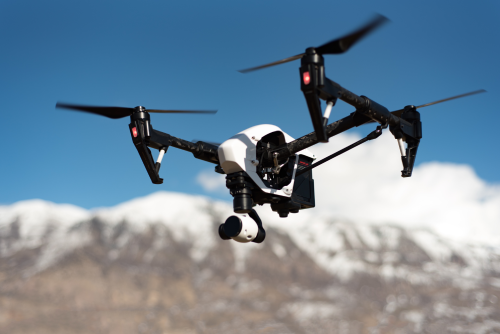
Getting the best drone camera settings for 4K video is less about chasing “cinematic” buzzwords and more about controlling a few key variables properly. If your footage looks too sharp, too jittery, too dark, or strangely coloured, the fix is usually in your frame rate, shutter speed, ISO, white balance, and profile settings.
Quick Take
If you want a simple, reliable starting point for 4K drone footage, use this:
- Resolution: 4K UHD
- Frame rate: 25fps or 30fps
- Shutter speed: roughly double your frame rate
- 25fps: 1/50
- 30fps: 1/60
- ISO: keep as low as possible, ideally ISO 100
- White balance: lock it manually instead of using Auto
- Colour profile:
- Beginners: Normal or Standard
- Editors/graders: Flat or Log profile if your drone supports it
- Sharpness/noise reduction: keep moderate, not aggressive
- ND filter: use one in daylight if you need slower shutter speeds
- Anti-flicker: 50Hz if your drone offers it and you are shooting around artificial lighting in India
If you only remember one thing, remember this: for smooth-looking 4K drone video, avoid full Auto mode whenever possible.
Why 4K drone footage often looks bad even on expensive drones
A lot of pilots assume 4K automatically means professional quality. It does not.
4K only tells you the resolution. It does not guarantee:
- smooth motion
- accurate exposure
- natural colours
- clean shadows
- cinematic motion blur
- stable highlights during sunrise or sunset
Most bad drone footage comes from one of these problems:
- shutter speed too fast, making motion look harsh and stuttery
- ISO too high, creating noise and muddy detail
- auto white balance shifting during the shot
- over-sharpened image settings
- using a flat or log profile without knowing how to colour grade it
- shooting fast pans that make even good settings look poor
The good news is that once you understand a few core settings, most consumer drones can produce very good 4K footage.
The best baseline drone camera settings for 4K video
There is no single best setup for every flight, but there is a best starting point for most drone users.
1. Resolution: choose 4K UHD unless you have a specific reason not to
For most creators, 4K UHD is the right choice.
Why it works:
- gives you more detail than 1080p
- allows cropping in post without losing too much quality
- looks better on YouTube and modern screens
- gives flexibility for reframing vertical clips later
If your drone offers both UHD and DCI 4K, pick the one that matches your editing and delivery workflow. Most people should stick to UHD for simplicity.
2. Frame rate: 25fps or 30fps for normal footage, 50/60fps for slow motion
Frame rate means how many frames are recorded per second.
Here is the practical rule:
- 24fps: cinematic look, common in film-style work
- 25fps: great choice in India, especially around 50Hz lighting
- 30fps: common for YouTube and general web content
- 50fps or 60fps: use when you want smooth motion or slow motion in editing
For most drone shots, use:
- 25fps if you are editing in a 25fps timeline or dealing with Indian artificial lighting
- 30fps if your entire project is built around 30fps delivery
- 60fps only when you know you want to slow the footage down
A common beginner mistake is shooting everything in 4K 60fps. It sounds better on paper, but it often forces faster shutter speeds, larger file sizes, and lower low-light performance. If you are not creating slow motion, 25fps or 30fps is usually the better choice.
3. Shutter speed: follow the 180-degree rule
This is the most important setting for natural-looking motion.
The 180-degree rule simply means your shutter speed should be about double your frame rate.
Use these as starting points:
- 24fps: 1/50
- 25fps: 1/50
- 30fps: 1/60
- 50fps: 1/100
- 60fps: 1/120
Why this matters:
- too fast a shutter makes footage look choppy and “crispy”
- too slow a shutter makes footage smeary and soft
Drone shots involve movement of the aircraft, the gimbal, and the scene itself. So shutter speed has a huge effect on how smooth the footage feels.
If you shoot at 25fps in bright sunlight and your drone wants to expose at 1/1000, your video may look unnaturally staccato. That is why ND filters matter.
4. ISO: keep it low
ISO controls sensor sensitivity. Higher ISO makes the image brighter, but also noisier.
Best practice:
- use the lowest native or base ISO available
- stay at ISO 100 in daylight whenever possible
- increase ISO only when you have no better option
For small-sensor drones, high ISO usually degrades the image quickly. Shadows turn noisy, colours weaken, and detail becomes mushy after compression.
A practical approach:
- daylight: ISO 100
- golden hour: ISO 100 to 200 if needed
- low light: increase carefully, but know the image will degrade
If your drone footage is regularly noisy, the problem is often not “bad camera quality.” It is usually too much ISO.
5. White balance: lock it manually
White balance controls colour temperature. If it is on Auto, the colour can shift mid-shot as the drone turns from sky to land or from sun to shade.
That creates ugly footage and makes editing harder.
Use manual white balance and lock it before recording.
Good starting points:
- bright sunlight: around 5200K to 5600K
- cloudy conditions: around 6000K to 7000K
- golden hour: often warmer, around 6000K to 7500K depending on the look you want
These are only starting points, not strict rules. The goal is consistency.
If you are shooting a property video, travel reel, or YouTube sequence, locked white balance will make your clips match much better.
6. Colour profile: Normal for simplicity, Log/Flat for flexibility
Most drones offer some form of colour profile.
Typical options include:
- Normal or Standard
- Flat
- Log profile such as D-Log or an equivalent, depending on brand
Choose based on your editing skill.
For beginners: – use Normal or Standard – easier to edit – colours look good straight from camera – less risk of flat, dull-looking final output
For experienced editors: – use Flat or Log if your drone supports it – preserves more highlight and shadow detail – gives more flexibility in colour grading
Be honest with yourself here. A log profile is not automatically “better.” If you do not colour grade properly, normal profile footage can look far better.
7. Aperture: only matters if your drone has adjustable aperture
Many compact drones have a fixed aperture. In that case, you cannot change it, so do not worry about it.
If your drone has variable aperture:
- avoid shooting wide open all the time unless needed
- f/4 to f/5.6 is often a good sharpness range on many cameras
- in very bright conditions, aperture can help control exposure, but ND filters are still often the better tool if you want to maintain the right shutter speed
For fixed-aperture drones, exposure control usually comes down to shutter speed, ISO, and ND filters.
8. Focus: check it before every important shot
Some drones have fixed focus. Others need autofocus or manual focus confirmation.
If your drone supports focusing:
- tap to focus on your subject before recording
- check the image on screen at full magnification if possible
- re-check focus when changing subjects, altitude, or scene type
A shot can look perfect in the sky and still be slightly soft when viewed on a laptop later.
9. Anti-flicker: set 50Hz in India when needed
This is especially important in India.
If your drone camera has an anti-flicker setting and you are shooting around artificial lights, choose 50Hz. India uses a 50Hz electrical system, and the wrong setting can cause flicker or banding under certain lights.
This matters more for:
- city scenes at dusk
- wedding venues
- indoor atriums or event spaces
- urban shots near LED signage and building lights
Best 4K drone settings by shooting situation
The “best” settings change with the scene. Use this as a practical guide.
| Shooting situation | Recommended settings | Why it works |
|---|---|---|
| Bright daylight landscape | 4K, 25fps or 30fps, 1/50 or 1/60, ISO 100, manual WB, ND16 or ND32 if needed | Keeps motion natural and exposure controlled in harsh light |
| Golden hour travel shots | 4K, 25fps, 1/50, ISO 100 to 200, WB locked warm, Normal or Flat profile | Preserves colour consistency and avoids noisy shadows |
| Real estate video | 4K, 25fps, 1/50, ISO 100, locked WB, slower movements, Normal profile for quick delivery | Clean, stable footage that is easy to edit and deliver to clients |
| Fast action or vehicles | 4K, 50fps or 60fps, 1/100 or 1/120, ISO as low as possible, manual WB | Lets you slow down footage smoothly in post |
| Low-light evening shots | 4K, 25fps, 1/50 if possible, ISO carefully raised, WB locked, avoid aggressive movement | Protects motion while limiting noise as much as possible |
| Social media reels with crop flexibility | 4K, 30fps, 1/60, ISO 100, locked WB, highest practical bitrate | Gives room to crop vertical without losing too much detail |
The best starter preset for most drone users
If you are a beginner and want one dependable preset, use this:
Daylight preset
- Resolution: 4K UHD
- Frame rate: 25fps
- Shutter speed: 1/50
- ISO: 100
- White balance: 5500K locked
- Colour profile: Normal
- Anti-flicker: 50Hz if available
- ND filter: ND16 or ND32 depending on brightness
This preset works very well for:
- travel videos
- landscape shots
- temple and heritage views from permitted areas
- resort and property visuals
- YouTube B-roll
- college project footage
If your editor or client prefers 30fps, switch to 30fps and 1/60 shutter.
When to use ND filters for 4K drone video
ND stands for neutral density. Think of it as sunglasses for your drone camera.
You need an ND filter when:
- it is bright outside
- you want to keep shutter speed low
- your footage looks too sharp and jittery because shutter is too fast
A simple guide:
- ND8: mild sunlight
- ND16: bright daylight
- ND32: very bright midday sun
- ND64: extremely bright conditions, reflective surfaces, beaches, snow-like glare
You do not choose an ND filter by guesswork alone. You choose it so your shutter speed can stay close to the target for your frame rate.
Example: If you are shooting at 25fps and want 1/50 shutter, but the image is overexposed, add ND until exposure looks correct while keeping 1/50.
How to set your drone camera before takeoff
This 7-step routine prevents most camera-related problems.
1. Decide your final delivery first
Ask yourself:
- YouTube?
- Instagram Reel?
- client real estate video?
- cinematic short film?
- slow-motion sequence?
This decides your frame rate and colour profile.
2. Set resolution and frame rate
Choose 4K and then set:
- 25fps for natural everyday shooting in India
- 30fps if your entire project is in 30fps
- 50/60fps only if you need slow motion
3. Switch to manual exposure if possible
Do not let the drone constantly change exposure in the middle of your shot unless absolutely necessary.
Set:
- shutter speed
- ISO
- white balance
4. Add the right ND filter
Before takeoff, check whether you can maintain your target shutter speed without overexposing.
If not, add an ND filter.
5. Lock white balance
Choose a Kelvin value manually. Do not leave it on Auto unless the lighting is changing so quickly that you have no choice.
6. Check histogram and highlights
If your drone shows a histogram, use it.
You want to avoid:
- blown highlights in clouds or water reflections
- crushed shadows in trees, buildings, or fields
A slightly darker image is often safer than blown highlights, especially if you are using a flat or log profile. But do not underexpose excessively either, because drone shadows can get noisy fast.
7. Test one short clip and review it
Before doing the real shot:
- record 5 to 10 seconds
- check sharpness
- check exposure
- check colour consistency
- check whether motion looks natural
This simple habit saves entire flights.
Common mistakes that ruin 4K drone footage
Using Auto white balance
It may look fine live, but your footage can shift from cool to warm during one smooth movement.
Shooting with very fast shutter speeds
This is one of the biggest reasons drone video looks amateurish. Fast shutter makes motion feel brittle.
Raising ISO too quickly
Small drone sensors are not forgiving in low light. Once ISO climbs, quality drops.
Using Log without grading
Flat-looking footage is not cinematic by default. If you do not colour grade, Normal profile is often smarter.
Panning too fast
Even perfect settings cannot fix overly fast yaw movement. Slow your turns and let the scene breathe.
Mixing frame rates randomly
Do not shoot one clip at 25fps, the next at 30fps, and the next at 60fps without a plan. It complicates editing and motion consistency.
Ignoring focus
If your drone has autofocus, do not assume it is always correct.
Trying to force night shots from a basic drone
Many small drones struggle in low light. You can get decent dusk footage, but deep night scenes often show noise, softness, and unstable colour.
Over-sharpening in-camera
Some drones apply heavy sharpening. If your footage looks harsh or full of edge halos, reduce sharpening if your camera allows it.
Safety, legal, and privacy points for drone videography in India
Good camera settings mean nothing if the flight itself is unsafe or not allowed.
Keep these points in mind:
- Verify the latest DGCA and Digital Sky rules before flying.
- Check whether your flying area is permitted, restricted, or requires special permission.
- Do not fly recklessly near people, roads, traffic, events, or sensitive locations.
- Respect privacy. Do not film homes, terraces, or people in a way that feels intrusive or unsafe.
- Maintain visual line of sight and avoid risky low-altitude moves around crowds or structures.
- If you are filming commercially, make sure your operational paperwork and permissions are current.
Rules, airspace status, and local enforcement can change. Always verify the latest official guidance before any professional or travel shoot.
A simple workflow for better-looking 4K drone footage
Camera settings are only part of the result. The rest comes from how you fly and how you finish the footage.
A reliable workflow looks like this:
-
Plan your time of day
Early morning and late afternoon usually look much better than harsh noon light. -
Fly slower than you think
Smooth drone movement makes more difference than dramatic stick inputs. -
Keep shots longer
Hold each shot for a few extra seconds at the start and end. It helps in editing. -
Expose carefully
Protect highlights, especially clouds and reflective water. -
Edit on a matching timeline
If you shot 25fps, edit on a 25fps timeline unless you have a reason not to. -
Apply only moderate sharpening and noise reduction
Over-processing can make drone footage look artificial fast.
FAQ
Is 25fps better than 30fps for drone video in India?
Neither is universally better, but 25fps is often a very practical choice in India, especially around 50Hz lighting and for a more natural cinematic feel. Use 30fps if your project, client, or channel is built around 30fps. The key is consistency across the whole edit.
Is 4K 60fps better than 4K 30fps?
Not automatically. Use 4K 60fps when you want slow motion or very smooth movement. For normal drone shots, 25fps or 30fps usually gives better shutter-speed control, smaller files, and a more natural look.
Do I really need ND filters for drone video?
If you shoot outdoors in daylight and want proper motion blur, yes, ND filters are very useful. Without them, your shutter speed often becomes too fast, which makes footage look harsh and jittery.
What is the best ISO for drone 4K video?
The best ISO is usually the lowest one that gives correct exposure. For most daylight flights, that means ISO 100. Raise it only when necessary.
Should beginners shoot in Log or Normal profile?
Beginners should usually start with Normal or Standard. It is easier to expose and edit. Use Log or Flat only if you understand colour correction and grading.
Why does my 4K drone footage look jerky even when the drone is stable?
Usually because of one of these reasons:
- shutter speed is too fast
- pans are too quick
- frame rate does not match your edit
- there is not enough motion blur
Start by fixing shutter speed and slowing your movements.
What white balance should I use for outdoor drone shooting?
A good daylight starting point is around 5500K. The exact value depends on weather and your preferred look, but the important thing is to lock it manually so it does not shift during the shot.
Can I use Auto mode for drone video?
You can, but it is not ideal for quality footage. Auto exposure and Auto white balance often change mid-shot, which makes the footage harder to use. Manual control gives more consistent results.
Is 4K always worth it for social media?
Usually yes, because it gives you extra detail and room to crop for vertical formats. Even if the final upload is compressed, starting with 4K often helps overall quality.
Final takeaway
If you want the best drone camera settings for 4K video, start simple: shoot in 4K at 25fps or 30fps, keep shutter speed near double the frame rate, lock white balance, keep ISO low, and use an ND filter in daylight. That one setup will improve most beginner footage immediately.
If you are flying this week and want one safe preset to try, use 4K 25fps, 1/50 shutter, ISO 100, white balance locked around 5500K, Normal profile, and the right ND filter for the light. Then focus on smooth flying and permitted locations. That is where good drone video actually begins.
