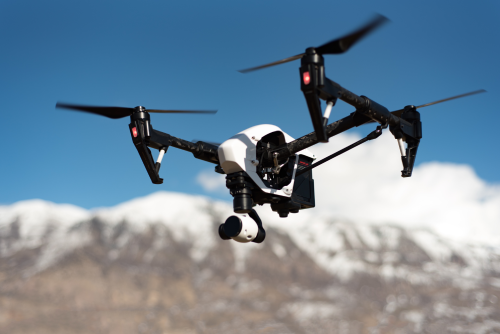
A good drone hyperlapse can make an ordinary scene look cinematic: roads seem to flow, clouds race past, and buildings reveal themselves with a smooth sense of movement. This drone hyperlapse tutorial for beginners will help you plan, shoot, and edit your first usable hyperlapse without overcomplicating the process.
Quick Take
- A hyperlapse is a timelapse where the camera moves through space, not just a sped-up video.
- For beginners, the easiest drone hyperlapse is a straight push-in, pull-back, or rise-up shot.
- Use your drone’s built-in Hyperlapse or Waypoint-style mode if it has one. It is much easier than doing everything manually.
- Lock exposure, white balance, and focus before starting. This reduces flicker and color shifts.
- Start with a 2 to 5 second interval and aim for a final clip of 6 to 10 seconds.
- Shoot extra frames. You will usually crop and stabilize later.
- In India, always verify the latest airspace, permissions, and operating rules on official sources before flying. Avoid crowds, roads, sensitive locations, and private spaces.
- Edit in a simple workflow: batch color correction, remove flicker, stabilize, then export at 25 fps if you want a practical default.
What a drone hyperlapse actually is
A hyperlapse is a sequence of still frames or timed captures played back as a video, while the drone changes position during the shot.
That is different from:
| Type | Camera movement | Best use |
|---|---|---|
| Timelapse | Usually fixed or hovering | Clouds, sunset, shadows |
| Hyperlapse | Camera moves through the scene | Reveals, cityscapes, coastlines, roads, landscape transitions |
| Normal video sped up | Continuous video recording | Quick social clips, simpler edits, less flexibility |
Why hyperlapse is harder than a normal timelapse:
- The drone has to move smoothly.
- Framing must stay consistent.
- Exposure changes become more obvious.
- Wind affects the shot more.
- Stabilization in editing matters a lot.
The good news: you do not need a big production setup. You just need a simple route, stable settings, and enough patience to repeat the shot correctly.
What you need before you start
You do not need high-end gear, but a few basics make life easier:
- A drone with interval shooting, hyperlapse mode, or waypoint-style automation
- At least 2 batteries
- A fast microSD card with enough free space
- ND filters if your drone supports them and the light is harsh
- A phone, tablet, or controller screen bright enough to judge framing
- Editing software on mobile or desktop
Optional but helpful:
- Landing pad for dusty Indian locations
- Lens cloth for heat haze, dust, and fingerprints
- Notebook or phone notes to record interval, duration, and route
If your drone has an automatic Hyperlapse mode, use it for your first few attempts. If it does not, you can still make a manual hyperlapse by flying a slow, repeatable route while capturing interval photos.
Safety, legal, and compliance basics in India
Drone hyperlapses often tempt beginners to fly in dramatic city locations. That is exactly where you need the most caution.
Before every flight:
- Verify the latest DGCA and Digital Sky guidance for your location and drone category.
- Check whether the area is allowed, restricted, or temporarily sensitive.
- Confirm whether local permissions, property permission, or event restrictions apply.
- Avoid airports, defence areas, government-sensitive zones, and other protected locations.
- Do not fly over crowds, moving traffic, or public gatherings.
- Maintain visual line of sight.
- Respect privacy. Do not hover near homes, balconies, terraces, or private compounds without consent.
- Avoid strong winds, rain, low visibility, dust storms, and monsoon gusts.
For Indian beginners, one more practical point matters: a hyperlapse takes time. That means battery planning, people management, and location discipline matter more than for a quick selfie-style flight.
If you are unsure whether a location is legal or appropriate, pick a simpler open area. A safe legal landscape hyperlapse is better than a risky city shot.
How to choose the right scene
A hyperlapse works best when two things happen together:
- The drone moves in a clear direction.
- Something in the scene changes over time.
Good scene elements include:
- Moving clouds
- Water flow
- Distant traffic seen from a safe legal distance
- Light changes at sunrise or sunset
- A reveal from behind trees, rocks, or buildings
- Layered landscapes such as hills, lakes, or coastlines
Good beginner-friendly locations
These are usually easier than dense city centers:
- Open lakesides
- Coastal viewpoints
- Hill ridges
- Large fields with owner permission
- Tea estates or farm patterns where flying is allowed and safe
- A building reveal from private property with permission
- Fort or heritage exteriors only where local rules and permissions clearly allow it
Better times to shoot in India
For most parts of India, these are the easiest times:
- Early morning: softer light, less wind, fewer people
- Late afternoon to sunset: warm color, stronger shadows, better depth
Avoid your first hyperlapse in:
- Harsh midday light
- Heavy haze
- Summer thermals with gusty wind
- Monsoon drizzle or unstable weather
- Winter smog in urban areas
The easiest hyperlapse moves for beginners
Do not start with a complicated orbit around a subject. Keep it simple.
1. Push-in
The drone slowly moves toward the subject.
Best for: – Buildings – Hill temples from a legal distance – Trees opening into a landscape – Lakeside reveals
Why it works: – Easy to control – Strong cinematic feel – Stabilizes well in editing
2. Pull-back
The drone slowly moves away from the subject.
Best for: – Showing scale – Revealing a larger landscape – Creating a dramatic opening shot
3. Rise-up
The drone gently climbs while keeping the subject centered.
Best for: – Revealing a river, lake, fort wall, or valley – Beginners who want a simple vertical reveal
4. Side slide
The drone moves left or right while keeping the camera aimed at the subject.
Best for: – Tree lines – Building reveals – Parallax, which is the visual separation between foreground and background
This is slightly harder because framing can drift.
Camera settings for a clean beginner hyperlapse
Your goal is not “cinematic settings” in the usual video sense. Your goal is consistent frames.
Use still photos if possible
A true hyperlapse is usually built from individual photos. Many drones automate this and give you a finished video, but the best quality often comes from a photo sequence.
If your drone gives you both choices:
- Use photo sequence for maximum editing control
- Use in-camera hyperlapse video for faster results and easier workflow
Lock these settings before recording
Exposure
Do not let the drone keep changing brightness during the shot.
Use: – Manual exposure if you understand it – Exposure lock if manual is too much
Auto exposure often causes flicker, where brightness jumps from frame to frame.
ISO
Keep ISO as low as possible, usually the lowest native setting your drone offers in daylight.
This helps: – Cleaner image – Better color – Less noise in shadows
Shutter speed
For beginners, sharp frames are more important than fancy motion blur.
A practical approach: – Start around 1/100s to 1/250s in daylight – If it is windy, go faster – Use ND filters only if you know why you are using them
Too much blur can make drone hyperlapses messy and harder to stabilize.
White balance
Do not leave white balance on auto.
Set it manually to match the scene so color does not shift between frames.
Focus
- On drones with focus control, tap to focus and confirm sharpness before starting.
- On fixed-focus drones, just check the preview carefully.
Suggested interval settings
Your interval depends on how fast the scene changes.
| Scene | Interval to try | Why |
|---|---|---|
| Fast-moving clouds or active traffic in the distance | 2 seconds | Keeps motion lively |
| General landscape reveal | 2 to 3 seconds | Good beginner balance |
| Sunset or slow light change | 4 to 6 seconds | Smoother long transition |
| Mostly static scene with gentle camera motion | 3 to 5 seconds | Avoids too many duplicate-looking frames |
If you are not sure, start at 2 or 3 seconds.
How many photos do you need?
Use this simple formula:
Photos needed = final clip length in seconds × output frame rate
If you export at 25 fps:
- 6-second clip = 150 photos
- 8-second clip = 200 photos
- 10-second clip = 250 photos
Then calculate real shoot time:
Shoot time = number of photos × interval
Examples:
- 200 photos at 2-second interval = 400 seconds, or 6 minutes 40 seconds
- 250 photos at 3-second interval = 750 seconds, or 12 minutes 30 seconds
For beginners, a final hyperlapse of 6 to 8 seconds is enough. Shoot about 20% extra so you have room to crop and stabilize.
Step-by-step drone hyperlapse tutorial for beginners
Method 1: Using built-in Hyperlapse or automated route mode
This is the best way to start.
Step 1: Pick a simple route
Choose one movement only: – Push-in – Pull-back – Rise-up
Do not mix yaw, tilt, side movement, and altitude change in your first attempt.
Step 2: Set your composition
Frame the scene with:
- A clear main subject
- Some foreground for depth
- Enough space around the subject for later cropping
If your drone screen shows grid lines, turn them on.
Step 3: Lock your image settings
Before starting: – Lock exposure – Lock white balance – Confirm focus – Choose the interval – Check battery level and wind
Step 4: Program the move or select the automated style
Depending on your drone, this may be called: – Hyperlapse – Waypoints – Timed shot with route – Course-based automation
Keep the speed slow. Smooth always beats dramatic.
Step 5: Start the shot and leave it alone
Once the sequence begins: – Do not keep correcting every second – Watch the drone and surroundings – Be ready to cancel if birds, people, or wind become an issue
Step 6: Let it run a little longer than you need
The extra frames help later in editing.
Step 7: Land with battery margin
Do not chase the last 10 frames if battery is dropping too far. Hyperlapses are repeatable. Risky recoveries are not worth it.
Method 2: Manual hyperlapse on a drone without a dedicated mode
This is harder, but still possible.
Step 1: Choose the easiest possible shot
Use: – Straight push-in – Straight pull-back – Gentle rise-up
Avoid: – Orbits – Tight subject tracking – Fast side slides
Step 2: Enable interval photos
Set your interval to 2 or 3 seconds.
Step 3: Use your slowest flight response mode
If your drone has Cine, Tripod, or Slow mode, use it.
This helps you avoid jerky stick inputs.
Step 4: Move the drone smoothly
Your job is to keep these as consistent as possible:
- Speed
- Altitude
- Heading
- Subject position in frame
A simple trick: – Pick a screen reference point for the subject – Keep it near that point through the whole move
Step 5: Avoid too many control inputs
For a first manual hyperlapse, move in one direction only. Constant motion looks better than constant correction.
Step 6: Finish early if the scene becomes unstable
Stop if: – Wind increases – People enter the area – Birds get close – You lose visual confidence – Battery margin becomes uncomfortable
Manual hyperlapse rewards discipline, not heroics.
Editing workflow for beginners
You do not need complicated software skills to get a clean result.
If your drone already created a hyperlapse video
Your job is simple:
- Import the clip.
- Trim the beginning and end.
- Apply light stabilization if needed.
- Adjust exposure, highlights, and color.
- Export at 1080p or 4K.
This is the fastest workflow, but you get less flexibility.
If you shot a photo sequence
This gives better control.
Step 1: Import and back up the photos
Create a separate folder for each shot.
Step 2: Remove obvious bad frames
Delete frames with: – Major shakes – Sudden yaw changes – Strong exposure glitches – Bird interference – Motion blur that looks accidental
Step 3: Apply one base grade to all images
Match these across the full sequence:
- Exposure
- Contrast
- White balance
- Highlights and shadows
- Saturation
If you shot RAW, sync your settings across all frames.
Step 4: Reduce flicker
Flicker is the tiny brightness change between frames that makes a hyperlapse look amateurish.
To reduce it: – Use locked exposure while shooting – Smooth exposure in editing if your software supports it – Avoid heavy frame-to-frame adjustments
Step 5: Assemble the image sequence
Import the images as an image sequence and set the playback to 25 fps if you want a practical default for Indian creators.
Step 6: Stabilize and crop
Most drone hyperlapses need a small crop.
A good rule: – Expect to crop 5% to 15%
Stabilize gently. Over-stabilizing can warp the image.
Step 7: Add finishing touches
Keep it simple: – Slight dehaze if the air is hazy – Moderate contrast – Clean highlights – Light sharpening only if needed
Step 8: Export
For most beginners: – 1080p is perfectly fine – 4K is useful if your original files are strong and your system can handle it
Common mistakes beginners make
Flying in a place that is visually interesting but operationally risky
A crowded market may look exciting, but it is the wrong place to learn. Start in open legal spaces.
Letting the camera stay on auto
Auto exposure and auto white balance create flicker and color shifts.
Picking an orbit for the first attempt
Orbits look great but are much harder to keep clean. Start with a straight move.
Trying to make the shot too long
A 20-second hyperlapse needs a lot of frames, battery, and consistency. A strong 6-second clip is better.
Flying too fast
Hyperlapse is not a race. Smooth motion gives better results than dramatic movement.
Shooting in wind
Even a decent drone gets pushed around. Wind ruins consistency.
Not leaving room for crop and stabilization
If you compose too tightly, editing becomes difficult.
Forgetting heat, haze, and battery behavior
In India, summer conditions can reduce clarity and increase battery stress. Watch temperatures and do not push long flights.
FAQ
Can I make a drone hyperlapse without a special Hyperlapse mode?
Yes, if your drone can capture interval photos and you can fly a smooth route manually. It is harder, but possible.
What is the best first hyperlapse shot for a beginner?
A slow push-in or rise-up over an open landscape. It is simple to fly and easy to stabilize later.
Is it better to shoot photos or video for a hyperlapse?
Photos are better for true hyperlapse quality and editing control. Video sped up is easier but usually less flexible.
What interval should I use first?
Start with 2 or 3 seconds. That works for most beginner landscape and reveal shots.
How long should my final hyperlapse clip be?
Aim for 6 to 10 seconds. That is long enough to look polished without making the shoot too demanding.
Do I need ND filters?
Not always. For beginners, sharp and consistent frames matter more. Use ND filters only if they help you control bright daylight and you understand the trade-off.
Can I shoot a hyperlapse in windy weather?
You can, but you probably should not as a beginner. Even mild wind can cause frame drift and make stabilization much harder.
What frame rate should I export at?
25 fps is a practical default. It is clean, widely usable, and easy for most workflows.
Are drone hyperlapses allowed in Indian cities?
That depends on the exact location, airspace status, drone category, and current rules. Always verify the latest official guidance and local restrictions before flying.
Should I try night hyperlapse first?
No. Night hyperlapse is much more difficult because of low light, noise, focus issues, and operational risk. Learn in daylight first.
Final takeaway
For your first drone hyperlapse, keep it boring on paper so it looks good on screen: an open legal location, calm weather, a simple push-in or rise-up, locked settings, and a 2 to 3 second interval. Once you can repeat that shot cleanly, you are ready to try more advanced reveals, side slides, and longer sequences.
